Internet TV
Internet TV places channels from your IPTV provider into a dedicated row on Glasshouse Home, positioned below Channels. Glasshouse does not bundle playlists or channels; you provide your own M3U playlist link or Xtream Codes login in the Internet TV section of the Home tab, along with an optional XMLTV guide link (Xtream logins include their own guide automatically). A guide link that needs a login takes it the way a playlist link does, as http://user:password@host/....
- Background sync: The playlist is parsed locally on the TV upon entry and refreshed automatically every night; the TV guide (XMLTV) is updated every six hours.
- Account status: Each configured playlist displays its live channel count, last sync timestamp, subscription expiry date, and maximum simultaneous streams allowed.
- Playlist actions:
- Refresh: Re-reads the playlist and guide immediately.
- Edit: Updates credentials or URLs (leaving the password blank preserves the existing password).
- Remove: Deletes the playlist, cached guide, and associated channels from the TV.
- Satellite tuner (Enigma2): Add a satellite tuner takes the address of an Enigma2 receiver (for example
192.168.1.10) and, only if its web interface asks for one, a user name and password. Glasshouse reads the tuner's OpenWebif: every TV bouquet becomes a group, channels keep their bouquet order as numbers, logos are the tuner's picons, and the guide covers a week, read from the tuner every six hours. Several tuners can be added, each as its own playlist. The picture streams straight from the tuner's stream port, the one its own bouquets name (usually 8001). Stream port overrides it, for a tuner whose channels are to come from a different port instead, such as a transcoding profile on 8002. For a tuner that asks for a login there, turn on The tuner asks for a login to play a channel: the TV then passes the stream on with the same login, and a channel played that way cannot be paused. With the When every tuner is busy, switch a tuner to the requested channel switch on (off by default), a channel that finds every tuner busy moves the tuner showing live TV to it. A free tuner is used as it is, and a tuner recording or streaming for someone else is never touched. The tuner is asked one request at a time, and the guide is only read for bouquets that have a channel in the lineup. - Channel logos: Displays the playlist's logo on each Internet TV tile. Switched off, channels show their names instead. The switch is in the Internet TV section, below the channel list.
- Failure handling: If a playlist is temporarily unreachable, the previous channel list is retained. If login authentication is refused, automatic retries pause until edited or refreshed manually, preventing account lockouts from repeated failed attempts.
Choosing channels
IPTV subscriptions often contain tens of thousands of streams. Glasshouse organizes them into two tiers:
- The Lineup (up to 2,000 channels): The active channel collection stored on the TV, numbered like a traditional broadcaster guide.
- Home's row (up to 60 starred channels): The favourite channels chosen with a star to appear directly on the Glasshouse Home screen.
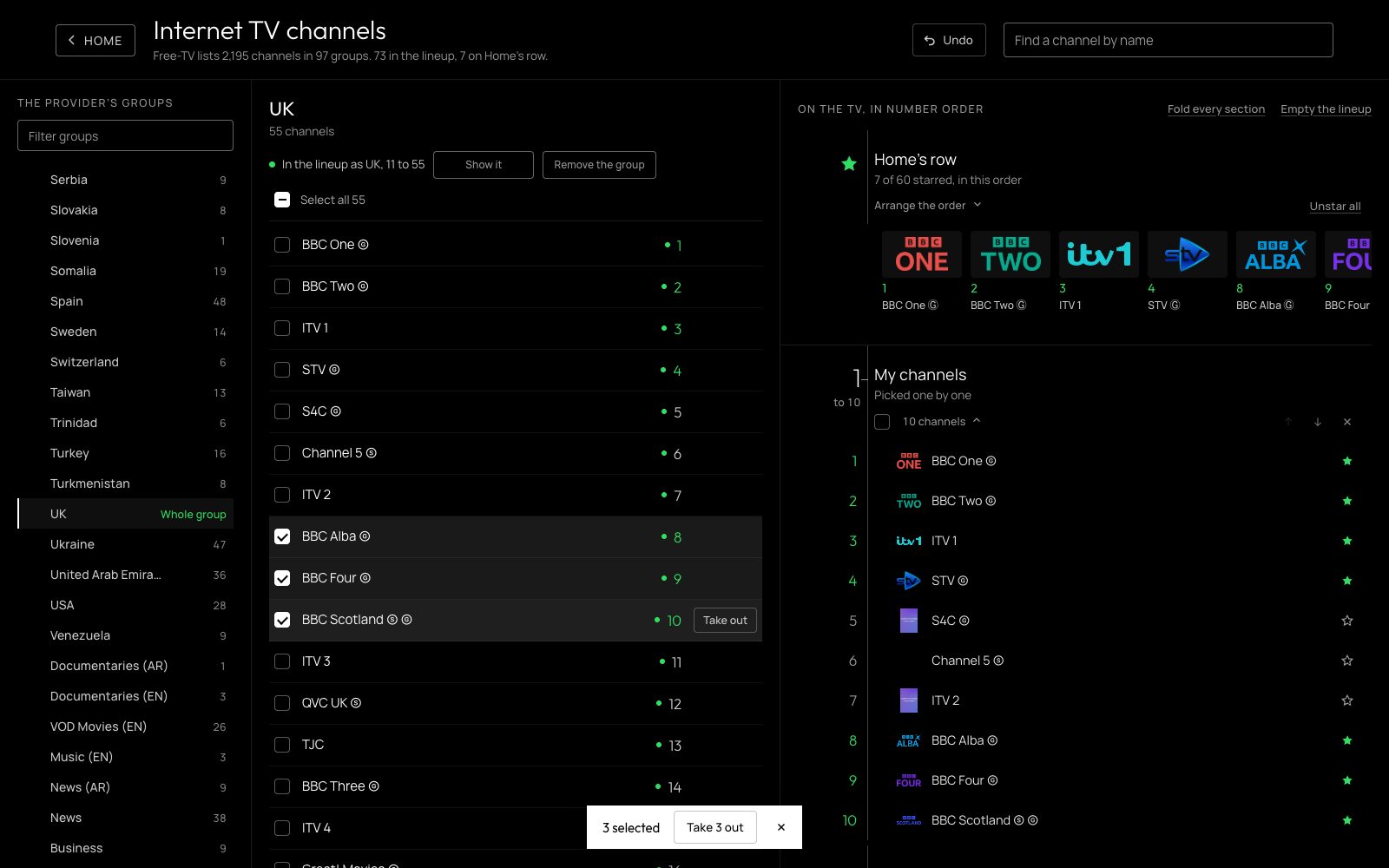
Clicking Manage channels in the Internet TV section of the dashboard opens a dedicated three-column channel manager:
Channel name cleanup
Names from providers are automatically normalized for readability on the TV:
- Country and tier prefixes (such as
"VIP: "or"UK| ") are displayed as small prefix labels. - Resolution and codec tags (such as
ᴴᴰ,ᴿᴬᵂ, orHEVC) appear as small quality badges. - ALL-CAPS names are converted to Title Case.
- Original provider names remain intact when hovering over a channel.
The three-column channel manager
- On the left (Groups):
- Lists the provider's channel categories grouped by country or tier, showing total channel count and how many are currently in your lineup.
- Filter groups: Quickly filters the list by category name.
- Hidden groups: Unwanted categories (foreign languages, movies, adult) can be moved to the end and excluded from searches.
- In the middle (Group channels & search):
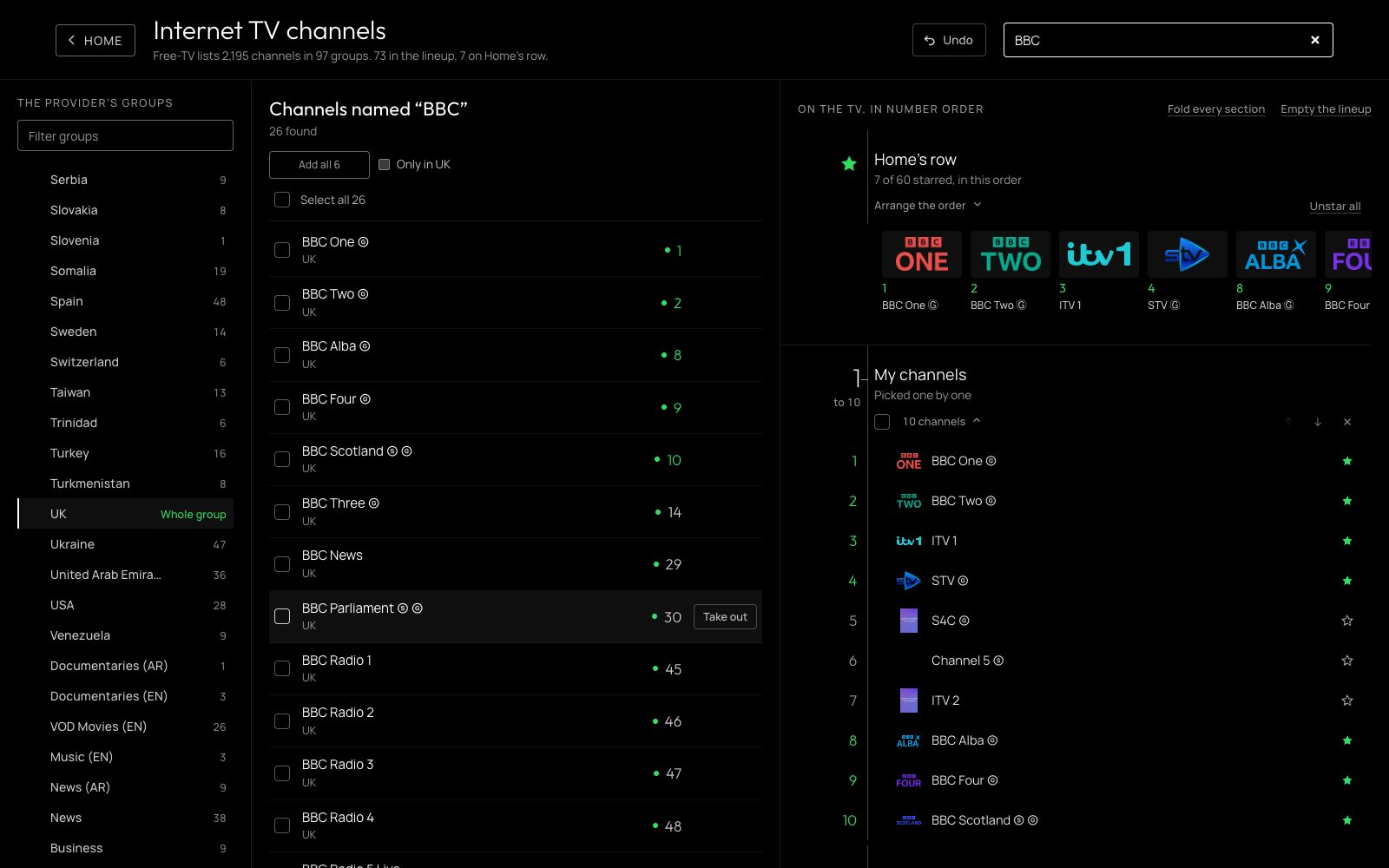
- Displays channels for the currently selected group, or search results from Find a channel by name across the whole playlist (Only in restricts search to the active group).
- Channels already in your lineup display their assigned channel number.
- Add / Take out: Instantly adds or removes individual channels.
- Add the whole group: Creates a dynamic lineup section that follows the provider: newly added provider channels join automatically, and dropped channels are removed. Drag channels to reorder them (new channels append to the end).
- Take out group: Removes all channels belonging to the group from the lineup at once.
- On the right (Lineup & Home row):
- Home's row: Starred channels displayed at the top in row order. Click a channel to locate it in the lineup, use Arrange the order to reorder via drag-and-drop or arrow buttons, or click Unstar all to clear the row.
- Lineup sections: Numbered channel blocks. A section starts immediately after the preceding section or at a custom number (e.g.
101,401, like satellite/cable guides). - Customization: Click a section name to rename it, use arrow buttons to move sections up or down, or click the cross icon to remove a section.
- Starring & renaming: Star a channel to toggle it on Home's row; click the pencil icon (or double-click the name) to rename a channel (clearing the name restores the provider's title).
- Empty the lineup: Clears all channels and sections from the TV.
Batch editing and keyboard shortcuts
Multiple channels and groups can be selected across searches and filters:
- Selecting items: Click a channel or group checkbox, Shift-click to select a range, or click the master checkbox at the top of a column to select all items.
- Bottom action bar:
- Groups: Add selected groups, remove all their channels from the lineup, or hide/show them.
- Channels: Add selected channels to the lineup, add and star them, or choose Add to… to create a new section or assign them to an existing section.
- Lineup: Star/unstar selected channels, Move to… another section, or remove them (pressing Delete also removes selected channels).
- Undo: The Undo button at the top reverts up to 20 recent changes (history resets when the TV restarts).
- Keyboard navigation: Press Escape to clear the current selection, or press it again to exit the channel manager.
Mobile, TV app, and TV screen management
-
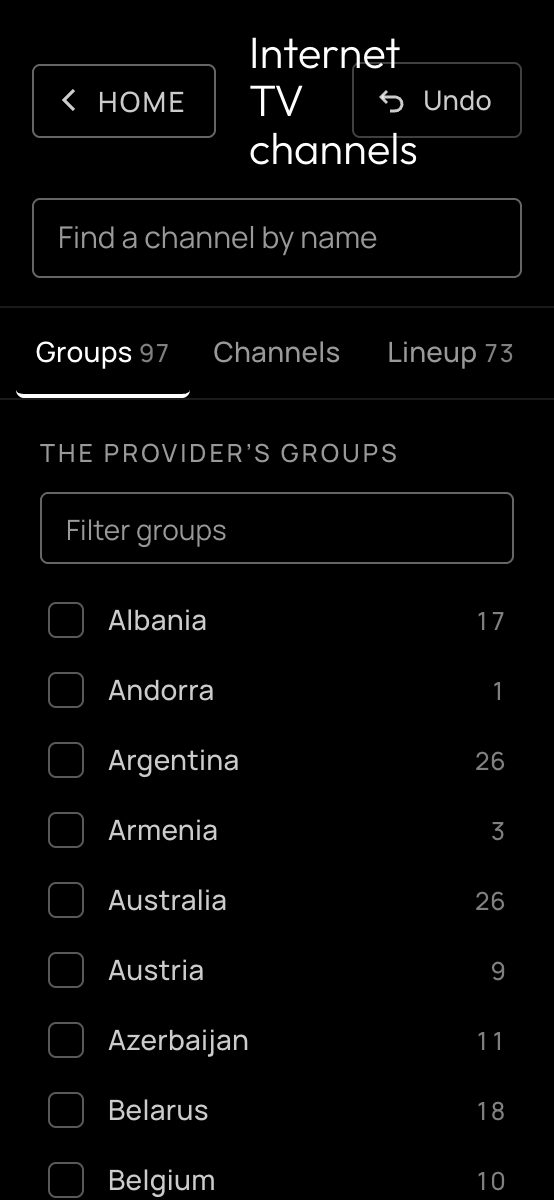
On mobile phones: The three columns are presented as swipeable tabs: Groups, Channels, and Lineup.
-
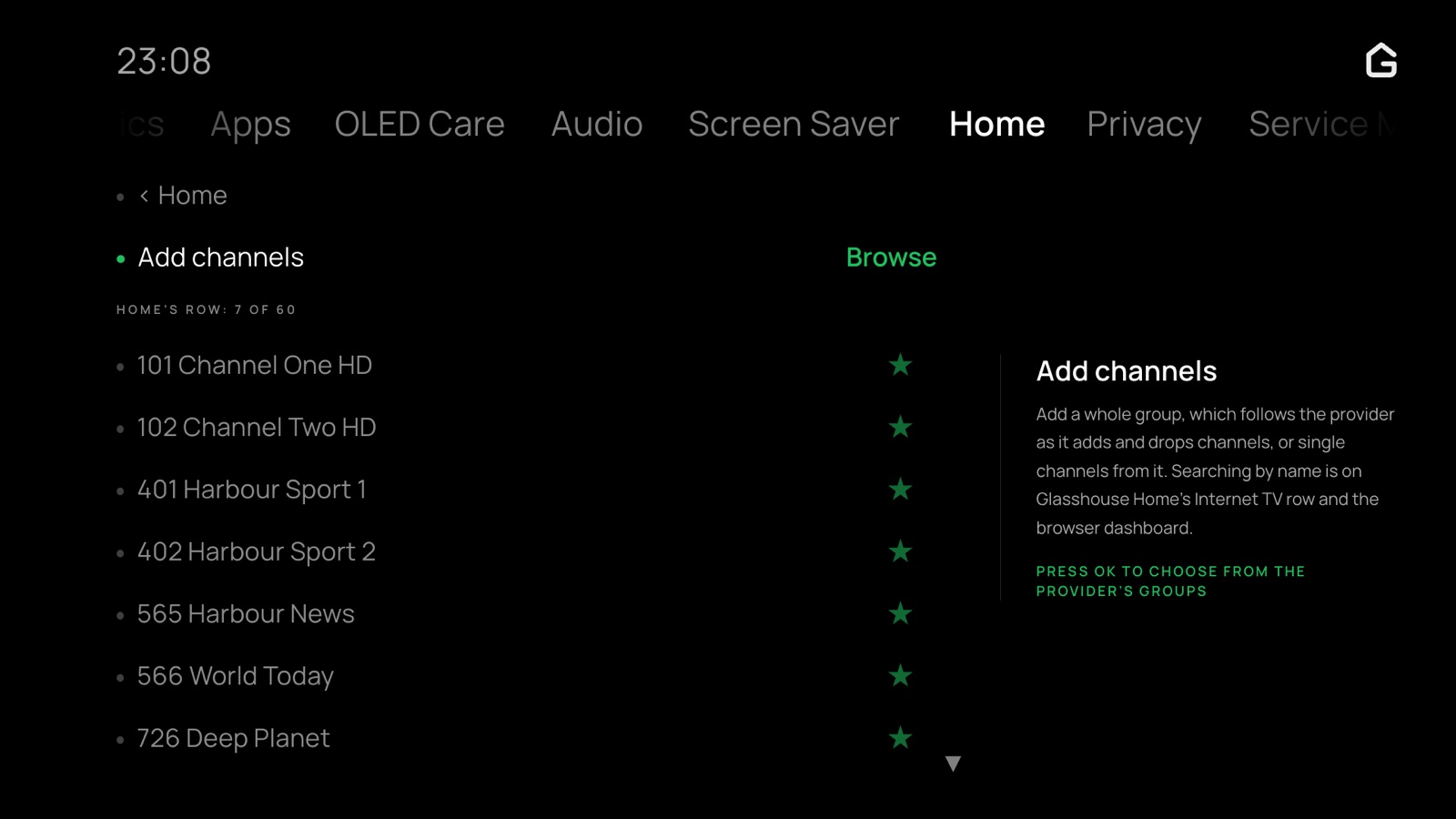
In the TV app: The Internet TV section provides remote-friendly lineup editing: view and reorder Home's row, browse provider groups, star/unstar channels with OK, and use Numbers start at to advance section numbering by hundreds. (Renaming channels requires the web dashboard).
-
Directly on the TV screen (Add channels tile):
- While arranging rows (hold OK), or when the lineup is empty, an Add channels tile appears on the row.
- Selecting it opens a search panel to browse playlists, groups, and channels directly from the couch.
- DRM and unsupported streams: Channels requiring custom player headers or DRM encryption are marked and cannot be added. If an unflagged DRM stream fails to play (such as RTÉ streams in public playlists), Glasshouse identifies the restriction, displays an explanatory notice, and marks the channel as protected from then on.
Full-screen player and controls
When opening a channel from the Internet TV row or live preview, playback opens full screen:
- Remote navigation:
- OK: Shows the programme band at the bottom, and hides it again.
- Left: Opens the channel list, seven channels of one section running down the left side of the screen with the focus on the middle one. The programme band is hidden while the list is open. Up / Down scroll the list under the focus, which moves only when the list reaches the first or last channel. OK tunes the focused channel, Right or Back closes the list, and CH+ / CH− switch sections.
- Up / Down / CH+ / CH−: Steps through channels across the entire lineup (with the channel list open, CH+ and CH− switch sections).
- Number keys: Directly jumps to a channel by its lineup number.
- Info: Displays the programme banner showing what is on now and next (also appears automatically for 5 seconds on each channel change).
- Yellow button: Switches between HLS and MPEG-TS stream formats for provider accounts. The TV remembers the selected stream format for each channel.
- Back or Home: With the band or the channel list open, Back closes it first. With neither open, Back or Home returns to Glasshouse Home. If Live preview is enabled, the channel continues playing in the preview, silently unless Preview sound is on.
- Playback: An MPEG-TS channel plays in Glasshouse Home's own player, which reads the stream through the Glasshouse server on the TV. When the provider closes the stream or sends nothing for 15 seconds, the server asks for it again and joins it up, so the picture plays on from what is buffered. A picture that freezes with video still buffered is stepped on after a second and a half and reopened after four seconds, and when the stream itself falls behind, the picture pauses before the buffer runs out and waits until a few seconds are buffered, rather than stuttering. A channel starts once a couple of seconds are buffered, and one that keeps running dry waits for more each time; Home remembers that for the channel, and how often the provider's channels run dry, so the next time it starts with what it needed. A stream that stops arriving, or arrives slower than it plays, is opened again, with the last picture held on screen meanwhile. Where the provider offers a channel as both HLS and MPEG-TS, one that keeps dropping or freezing switches to the other and starts that way next time. A channel that has played keeps being retried for 20 minutes, and a network outage is waited out. A stretch missing from the stream is jumped over as soon as the picture reaches it. When a channel has both AAC and Dolby (AC-3 or E-AC-3) sound, Home's player plays the AAC track. A channel the provider refuses on opening is tried again before Home gives up on it. HLS channels, paused live TV, satellite tuner channels, a channel whose video is neither H.264 nor HEVC, and one Home's player fails to decode twice in a row play in the TV's own player.
- Preview in the tile: With Preview in the tile enabled under Live preview settings, channels play directly inside their Home tile. Pressing OK smoothly expands the video to full screen, and pressing Back returns it to the tile without opening a new stream.

Electronic Programme Guide (EPG)
Whenever the lineup contains channels, an IPTV Guide tile remains accessible on the Internet TV row (even if no channels are currently starred):
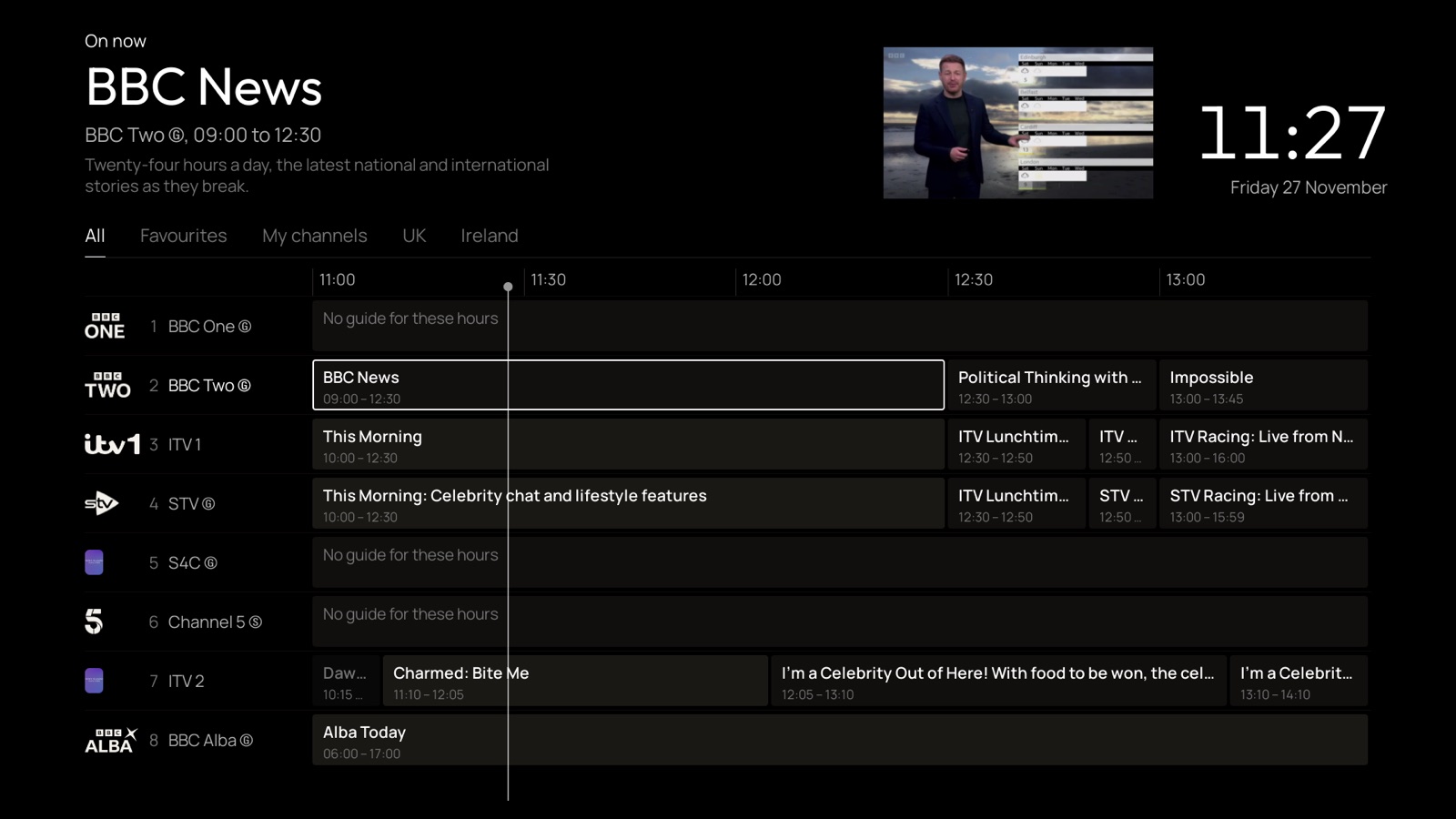
- EPG grid view: Selecting IPTV Guide (or pressing Info while on the Internet TV row) displays a 2.5-hour programme timeline starting 30 minutes before the current time, marked with an amber vertical line at the current time.
- Navigation:
- Up / Down: Moves through channels at the current time slot. The Magic Remote's wheel does the same, a row a notch.
- Left / Right: Scrolls horizontally through time (from 2 hours in the past up to 24 hours ahead).
- Channel Up / Channel Down: Pages through channels a full screen at a time.
- Top section tabs: Moving Up from the first channel highlights section and favourites tabs; use Left and Right to switch sections, or point at a tab with the Magic Remote and click it.
- Programme details: The top banner displays the title, start/end times, and synopsis of the focused programme, accompanied by a live preview of the channel.
- Tune / Scheduled: Pressing OK on an active programme tunes to the channel; pressing OK on an upcoming programme shows its scheduled start time. Back from a channel tuned this way returns to the guide as it was left, in the same tab and place, on the channel playing.
- Sync schedule: Guide data is parsed from the playlist's XMLTV URL or Xtream account. The full guide updates every 6 hours, while starred channels on Home's row refresh every 30 minutes. Channels lacking EPG data indicate none is available.
- Remote Guide button mapping: LG remotes route the physical Guide button to LG's broadcast tuner guide by default. In the Internet TV section on the Home tab, the The remote's Guide button setting can be switched to Glasshouse Home's guide, opening the Glasshouse IPTV guide from anywhere on the TV (apps, HDMI inputs, or Home). If Glasshouse Home is disabled or has no playlist, the button automatically reverts to LG's tuner guide. (Note: on webOS 11 the setting is offered only on a TV whose key handler Glasshouse knows how to change, see the Remote tab. It then restarts the TV's screen once, and again each time the TV starts).
Stream handling and reliability
- Single-stream enforcement: Many IPTV subscriptions permit only one or two simultaneous streams across an entire household. Glasshouse ensures the active stream is cleanly closed before opening the next. If all account streams are currently occupied by other devices, pressing OK retries the connection.
- Auto-reconnection: If a live stream drops unexpectedly, Glasshouse automatically attempts to reconnect at the live broadcast edge for up to one minute before stopping.
- Background efficiency: Automatic playlist and guide refreshes pause while a channel is playing.
- Screen saver protection: Screen savers stay suppressed while watching full screen.
- Pause live Internet TV: With the switch of that name on in the Internet TV section of the Home tab (off by default) and a USB stick in the TV, Pause on the remote pauses a channel played full screen, and Play or Pause again goes on from the same picture. The stick must be formatted FAT32 or exFAT, with at least 512 MB free. Only MPEG-TS channels can pause (Yellow switches a provider's channel to MPEG-TS); previews on the row and HLS channels are never recorded.
- Recording: While a channel plays full screen, the TV records it to the stick, up to 2 GB (about half an hour of an HD channel), and deletes the recording when the channel stops, changes or the TV goes to standby. The stick is written for as long as a channel plays, about 3 GB an hour, which wears a cheap stick sooner.
- Left / Right: Go 30 seconds back or forward in what was recorded, back as far as the stick holds and forward as far as live, with a moment's reconnect at each jump. The channel list is on OK for such a channel, and Right closes it.
- Back: Behind live, asks "Back to live?": OK goes to the live point and Back again stays. At the live point Back closes the player as ever. A remote's Stop asks the same, and changing channel from behind live asks "Change channel?" the same way, as the recording goes with the channel.
- Band: Shows how long the pause can last and how far behind live the channel is. A pause that reaches the start of what the stick holds plays on by itself.
- Security & privacy: Playlist URLs and Xtream login credentials remain stored strictly on the TV (
/var/lib/tvweb). They are never displayed on the dashboard again, never transmitted to Home Assistant, and never written to debug logs. See Security.