Server
The Server tab, /?tab=server, holds Glasshouse's own settings: Glasshouse itself and an Advanced section for developers and home-lab setups. Preferences for this browser (theme, sidebar, screen glow and language) are in the sidebar, and search finds each of them.
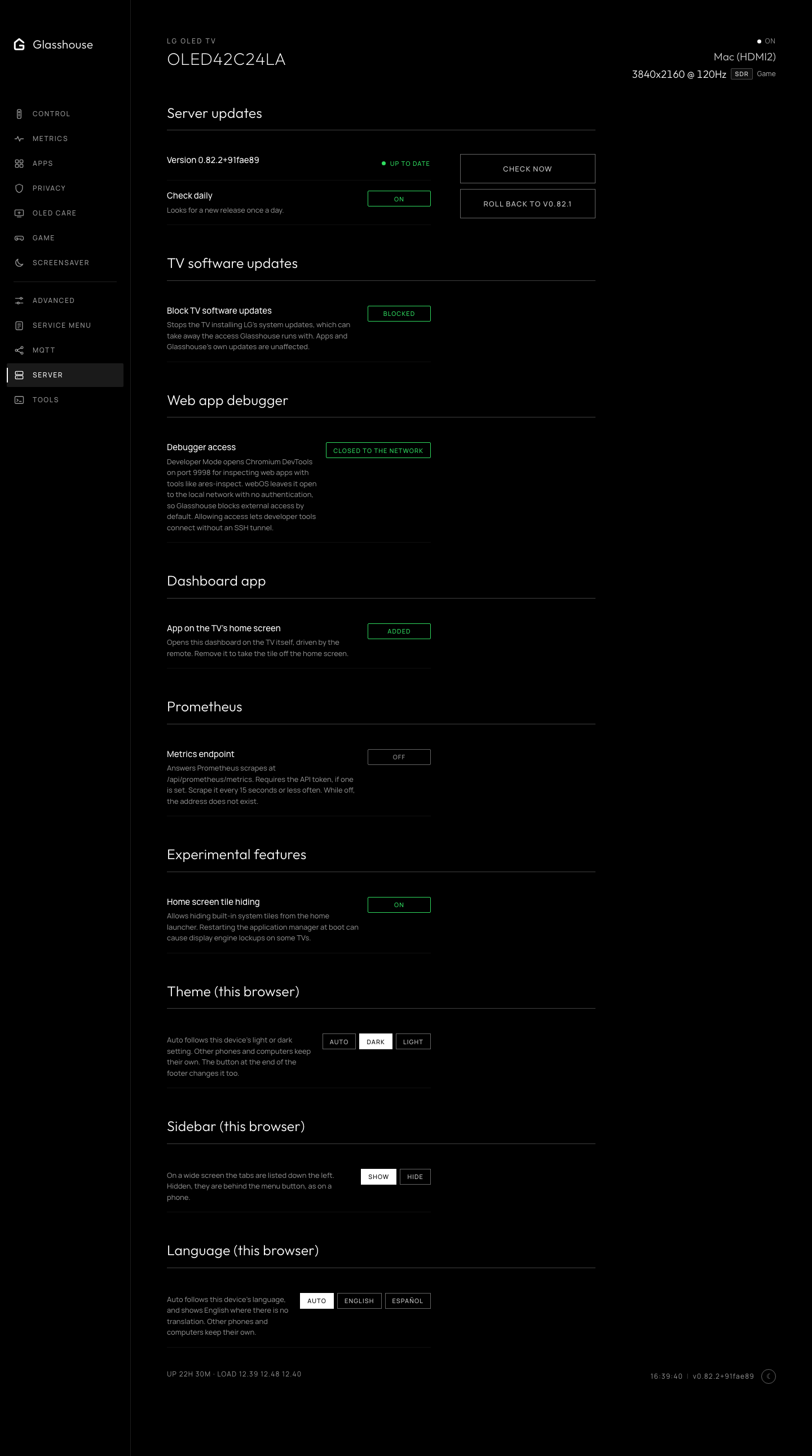
Glasshouse's updates, watch time, settings backups and the Advanced section.
Glasshouse
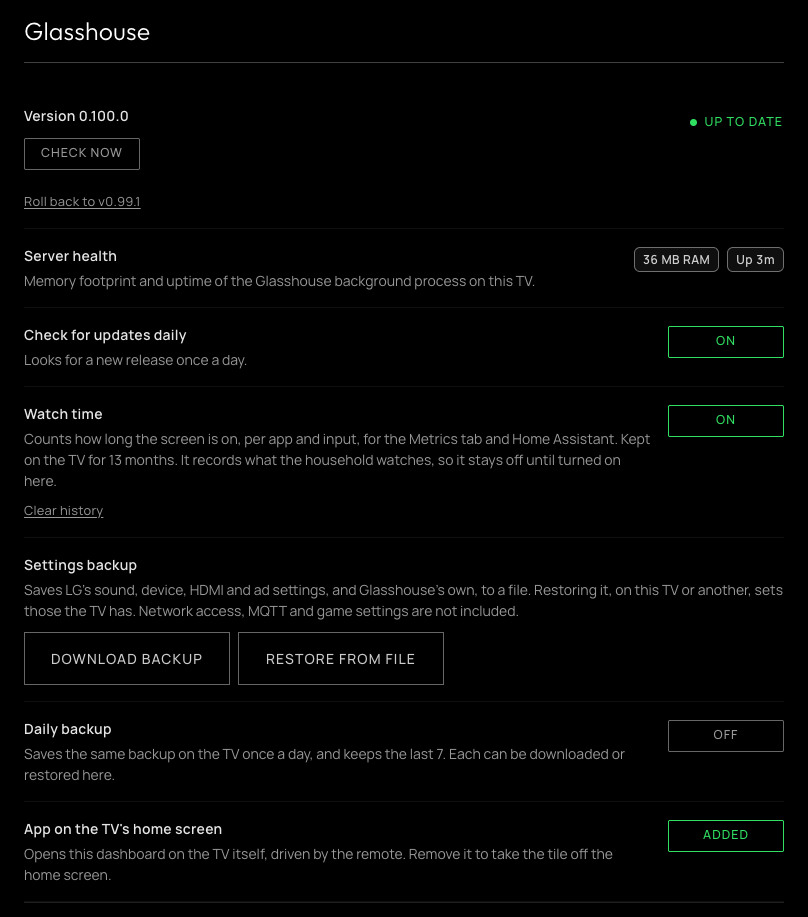
Shows the installed version and whether a newer release is out. Check now looks straight away, and Install appears when there is something to install, with What's new: a short summary of what each release since the installed one brings, newest first, and a link to its full notes. Package installs close the Glasshouse app and keep no rollback copy. For installs made with deploy.sh, Roll back, under the version, puts back the version installed before, after asking first. Updating covers installs from before the tab existed.
Check for updates daily looks once a day on its own, and lets Home Assistant offer the update.
Update pop-up shows a pop-up in the browser it is switched on in when a newer release is out, over whichever tab is open, with the release's one-line summary. Update installs it the way Install does, with its progress in the pop-up, and Dismiss leaves it until the next release. It is off by default and kept per browser. Where controls are off, the pop-up only says it is out.
TV name is the name under Glasshouse in the sidebar, and the TV's name in Home Assistant. Left empty, it is LG and the model, such as LG OLED42C24LA. A new name shows at once, with no restart.
Server health shows the background process uptime and memory footprint on the TV.
Watch time counts how long the screen is on, per app and input, for the Metrics tab and Home Assistant. It is off by default, as it records what the household watches. Clear history deletes what has been kept, whether counting is on or off.
Screen glow lets a dashboard light the top of its page with the colours on the TV's screen, the left and right halves each lighting their side, as a room takes its light from the TV. Each browser switches it on under Preferences in the sidebar, or with the glow button beside the light and dark switch at the foot of the page, and it is off until then. Searching for "glow" finds both. While it is on and the page shows, the dashboard reads the colours every 3 seconds: the TV captures its screen at 64 by 36 pixels, works out the colours and deletes the capture, so only the colours leave the TV. It pauses while the source says a game is playing, or while PicCap or Hue Sync is capturing the screen, and gives nothing over protected video, such as Netflix's, which the TV captures as black. Switched off here, no dashboard can turn the glow on. On a TV with no screen capture service, the row says so in place of the switch, and the glow is not offered. See Screen glow.
Settings backup saves the TV's settings to a file, and restores one, on the same TV or another. A restore sets only the settings the TV has and offers, each the way its switch on the dashboard would, skips those LG greys out at the moment, such as an HDMI input's settings while another input is on screen, and says how many it changed and skipped. Glasshouse restarts if its own settings changed. A backup also lists the apps installed from the Homebrew Channel or by hand. A restore installs none of them itself: those the TV lacks and the Homebrew Channel catalog has are offered on the Apps tab with Install all, each through its usual preview, which stops for a choice such as root, and those not in the catalog are named to install by hand.
| In a backup | Left out, and why |
|---|---|
| LG's sound, device, HDMI and promotion settings, and its diagnostics and fault log uploads | Picture and game settings: LG keeps them per input, picture mode and game genre, tuned to the panel |
| LG Logo Display, Quick Start+, Always-on and its nightly hours, Always Ready, Wake on LAN, Auto device detection, opening Home at power on, the standby light, the 12-hour clock | OLED care, the service menu lock and the logo light, which suit one panel or model |
| Ad blocking and your own hosts list, Limit ad tracking, and live content recognition when it is off | Live content recognition when it is on, and LG's other agreements: switching them on agrees to LG's terms, so that is done on the TV |
| Background services switched off, Network device scans (which a set-top box controlled by the Magic Remote needs on), saved web pages (a restore adds those missing), remote keys with their Brightness step and Level bar style, and Quick Access | Hidden system apps, which restart LG's app manager to apply, and blocking LG's TV updates, to choose on each TV |
| The screen saver and how long before the TV switches off | LG's On and Off Timers |
| — | Hue Sync app settings, which belong to Hue Sync, and Hue Sync/PicCap streaming actions |
| Glasshouse Home's layout | Whether Glasshouse Home is on, a custom launcher, wallpaper pictures and Internet TV playlists, which can hold logins |
| Logging, the log server, the time server, watch time and daily backups being on, screen glow being allowed, Prometheus, the daily update check | Who can reach the dashboard (port, host, token, controls), MQTT, Home Assistant API, per-screen-saver entity, colour and random pool choices, the TV's name, the experimental switches, and watch time itself |
A remote key or Quick Access key set to an app the TV doesn't have is named as not set. A key, input or service only one TV has is left as it is.
Daily backup saves the same backup on the TV once a day, in /var/lib/tvweb/backups, and keeps the last 7. It is off by default. Switched on, it saves that day's at once, then one each day the TV is on, as the server checks hourly. Each one kept is listed by its date with Download and Restore. Switching it off keeps those saved.
App on the TV's home screen adds or removes the dashboard's own app, which opens it on the TV and is driven by the remote.
Advanced
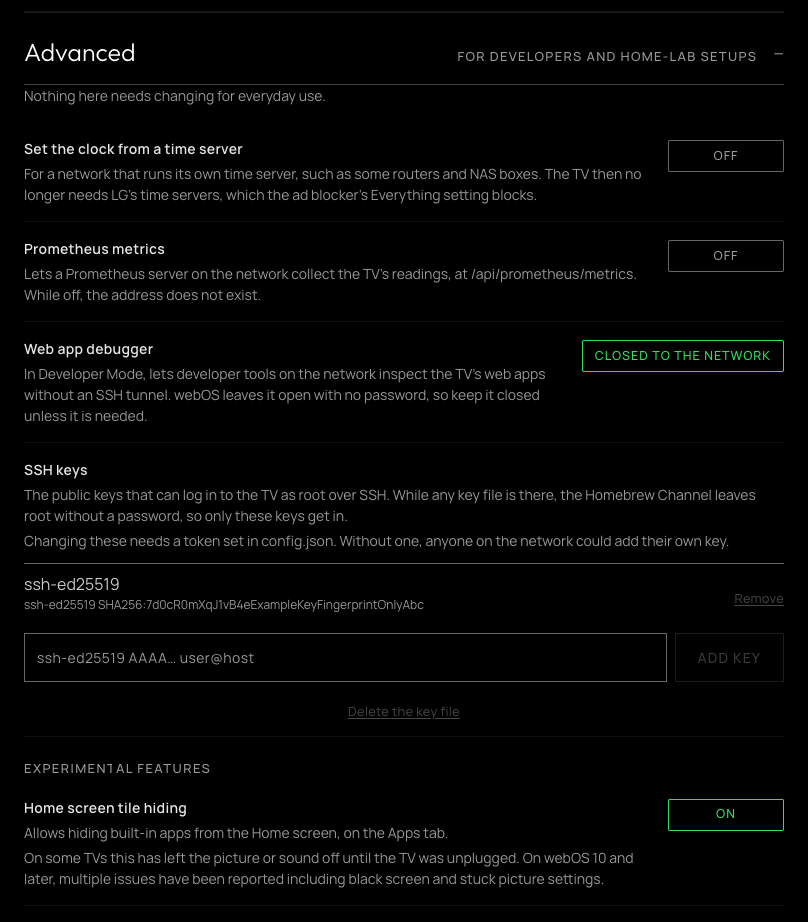
Folded away, since nothing in it needs changing for everyday use. Once opened, it stays open in that browser.
- Dashboard port is the port the dashboard answers on, 8080 unless changed. Change it when another app on the TV needs 8080 (Stremio's background service binds it, and fails to start while the dashboard holds it). Saving checks the port is free, writes
porttoconfig.jsonand restarts the server; the page then opens on the new address. The TV apps that open the dashboard follow the new port at the server's next start. - Set the clock from a time server switches the TV over to a time server on the local network, for networks that run one. Switched on, it asks for the server's address. Switched off, the address is kept for next time.
- Prometheus metrics turns on the Prometheus endpoint.
- Web app debugger opens or closes Developer Mode's debugger to the network. It is closed unless it is needed, since webOS leaves it open with no password. On a TV whose kernel has no firewall there is no switch, since the port cannot be closed, and the row says the debugger stays open to the network.
- SSH keys lists the public keys that can log in as root over SSH, in
/home/root/.ssh/authorized_keys, by comment, type and SHA256 fingerprint, asssh-keygen -lprints it. A public key pasted in is added, and Remove takes one out. While the file is there, the Homebrew Channel leaves root without a password, so only those keys get in. Delete the key file stops every key at once, and from the next reboot the Homebrew Channel gives root the passwordalpine, which everyone knows; until that reboot nothing can log in over SSH. The row says which applies now and after the next reboot, and offers Reboot now when they differ. None of it applies while SSH is off in the Homebrew Channel. Changing the keys needs a token; without one the row only lists them, by type and fingerprint. - Pointer input adds a trackpad under Control for moving, clicking and scrolling the TV cursor, with WebSocket or HTTP and 60, 120 or 240 updates per second; 120 is the default and recommended rate. Its descriptions explain the connection lifecycle and the dashboard batching rate's effect on smoothness and TV work; it does not limit other API clients.
- Experimental features: hiding built-in apps from the Home screen, custom screen savers on webOS 11 and later, and the Home screen layout on webOS 10. See Experimental features for why they are experimental.