Home
Note
Experimental (webOS 7, 9 & 10): Glasshouse Home replaces LG's built-in launcher when pressing Home or Back on the remote, or when the TV turns on. It is available on webOS 7, 9 and 10 (and on webOS 11 when "allowExperimentalHome": true is set in config.json), and works on whichever port the dashboard is on.
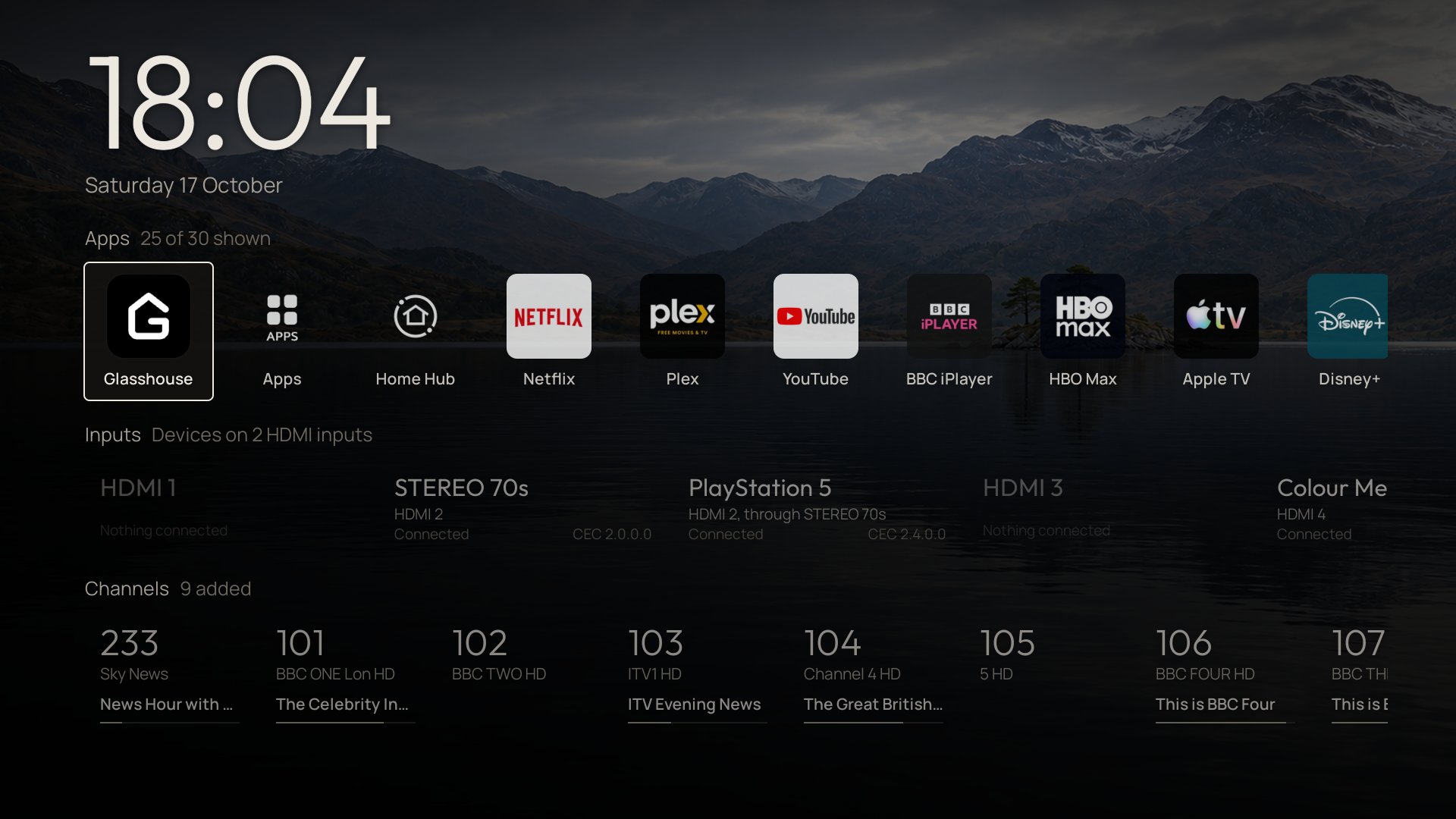
What is on screen
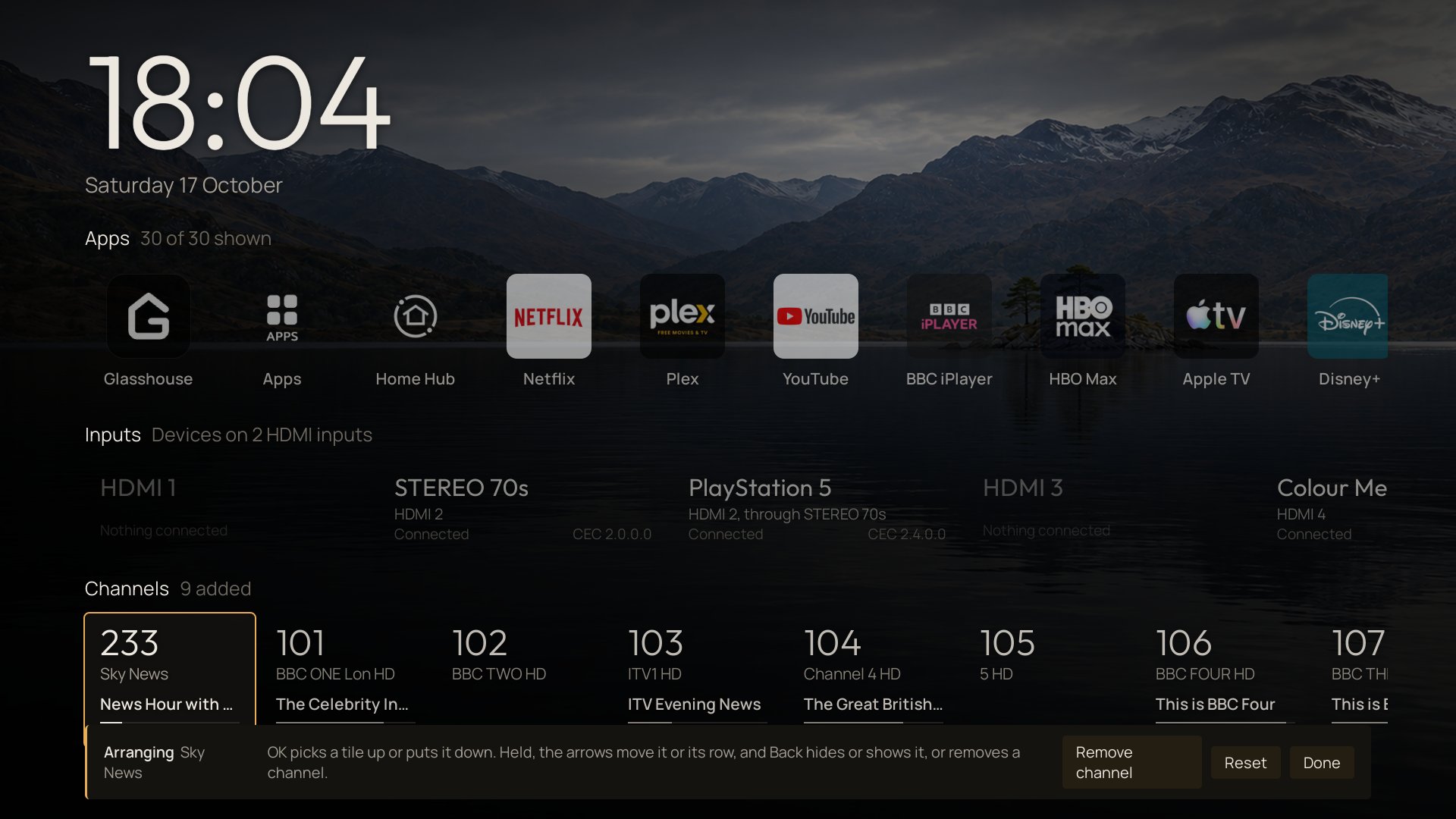
Glasshouse Home displays a clock and date (following the TV's 12-hour or 24-hour time setting), the last active source or app, and up to three rows (any row with no visible items is automatically hidden):
-
Apps
Every app from LG's launcher with its native icon. LG's promotional tiles (LG Channels, Sports, Always Ready, Alexa, Camera) start hidden, and apps Hide home screen system apps was hiding stay hidden here. Includes Notifications, Search, and an always-present LG Home tile at the end.
-
Magic Remote & scrolling
With the Magic Remote's pointer, hovering a tile focuses it and clicking opens it. Resting the pointer near either end of a row glides the row that way — faster the further out it points, with a soft arrow at the edge where there is more off-screen — gathering speed smoothly and braking into the last tile. The scroll wheel steps the hovered row one tile per notch, arrow keys continue from the tiles currently in view, and returning from an app preserves the focused tile and every row's scroll position.
-
Inputs & HDMI-CEC devices
Every HDMI port, plus separate tiles for connected HDMI-CEC devices (for example, "HDMI 2, through STEREO 70s"). Selecting a CEC tile wakes the device and switches receivers to that source; inactive ports appear dimmed. Inputs can be hidden one by one, like apps. Beside that, Hide inputs with nothing connected, a switch in the Inputs row's settings on the dashboard and in the TV app, leaves out ports with nothing plugged in instead of dimming them, marked Left out; they show, dimmed, while arranging, and come back as soon as something is plugged in. An input is left out if it is hidden or, with that switch on, has nothing connected.
-
Channels
Favourite live TV channels added from the dashboard or TV app, showing the current broadcast programme from the TV guide when available.
-
Recent apps (
Backbutton)
Pressing Back on Glasshouse Home opens a strip of recently used apps with live snapshots. Press OK to switch to an app, Down to close a single app, or Up for Close all.
-
Picture details plate
When Picture details is switched on, a top-right badge shows the active picture preset, OLED light / backlight level, and signal format — live HDMI resolution, refresh rate, chroma, bit depth, HDR format, and VRR, or the last video format played in an app.
-
Last watched, app count and CEC addresses
Last watched (the top strip and the marker on that input's tile), App count (the "4 of 18 shown" beside Apps) and CEC addresses (on each input tile) are on by default, and each can be switched off from either dashboard's Home tab.
The top strip stays empty until the saved layout loads. Switching Last watched off leaves the clock in place.
-
Fade in and out
When Fade in and out is switched on (off by default), Glasshouse Home fades out over a third of a second before an app, input, channel or recent app opens. Coming back, it stays black while its rows and the last active source refresh (at most 0.8 seconds), then fades in. Notifications and Search, which open over Home, do not fade it, and anything that fails to open fades it back in.
-
Colours & themes
Seven built-in colour presets (including Pure white with white text and white accent) plus custom Text and Accent colour pickers in the web dashboard (or preset cycling in the TV app). The accent colour highlights the focused tile and the last active source.
Search
Warning
Sends queries to LG's search service: Enabling Search sends typed search queries to LG's cloud search service (com.webos.service.nlpmanager / *.nextlgsdp.com — the same backend used by LG's built-in Search app) and nowhere else. It is off by default so nothing leaves the TV unless explicitly switched on.
When switched on under Home on the web dashboard or in the TV app's Home section, Search adds a mark in the left margin beside the rows: Left from the first tile of any row reaches it, and Right goes back. OK opens a search panel over the left of Glasshouse Home for films and series, typed on the TV's keyboard. While the keyboard is up the titles are single lines, with the icons of the apps that have them; once it closes each shows its poster, year, running time and apps. Editing the query clears the previous titles immediately. Up and down move between titles, left and right between apps, and OK opens the app at that title. A series opens at its start where the app allows: Prime Video and HBO Max at its first season, Disney+ and BBC iPlayer playing its first episode, Netflix at the series; Apple TV opens its latest episode. Titles only on apps the TV does not have are counted, not listed, and trailers, teasers and sneak peeks are never shown or opened. Back closes the keyboard, then the panel. Coming back from an app opened there within 30 minutes, without the TV having been switched off, finds the panel as it was left. Switched off, the mark goes and nothing typed leaves the TV.
LG's search needs the TV online and LG's search server (gb.nextlgsdp.com on a TV in the UK) reachable. Where the ad blocker blocks that server, on Everything or through an uploaded hosts list, the mark is hidden on Glasshouse Home and the Search switch is greyed on both dashboards, with a note saying what blocks it. The switch keeps its setting, and search comes back when the blocker is set to Ads & telemetry or off.
Wallpapers
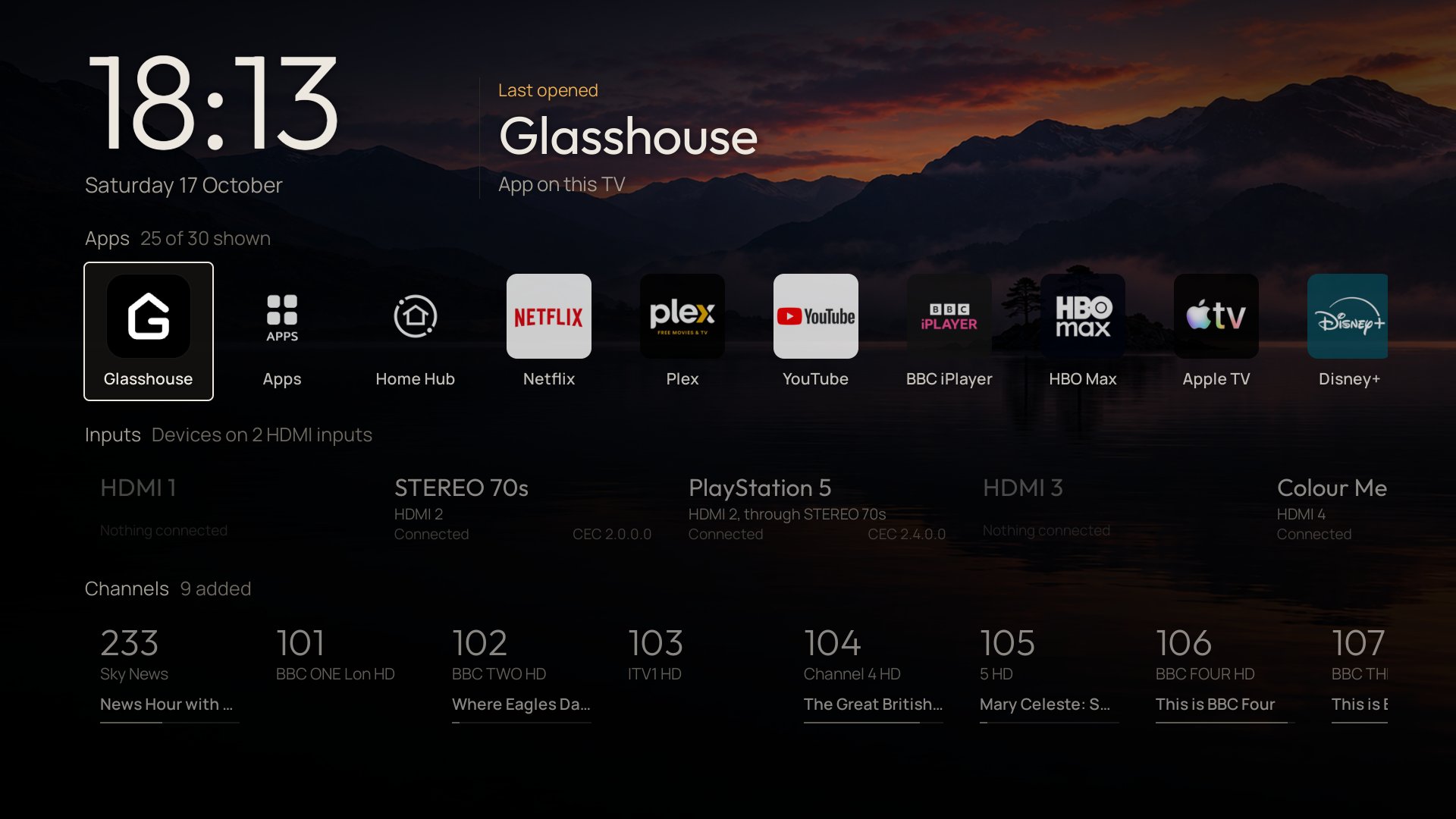
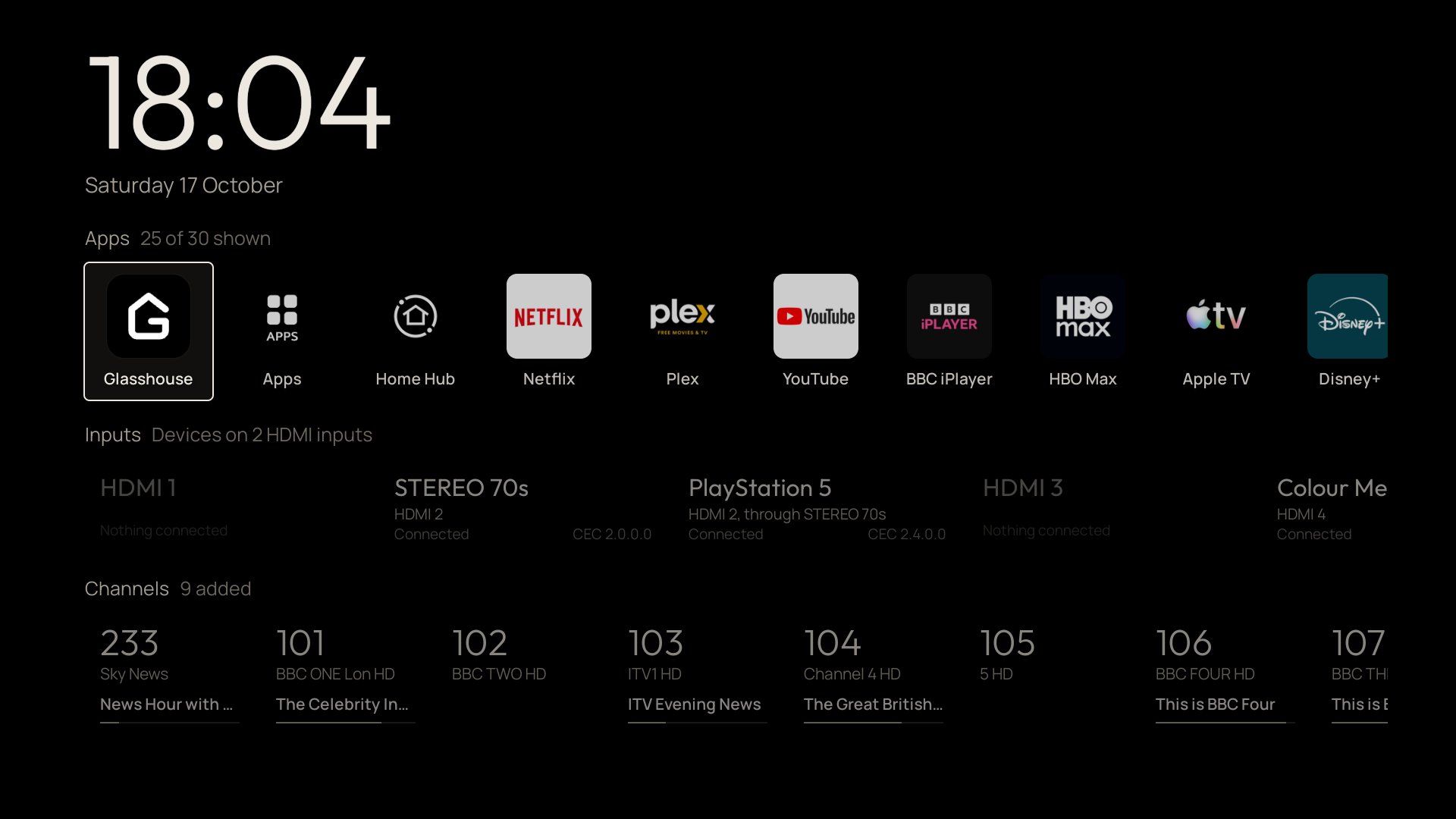
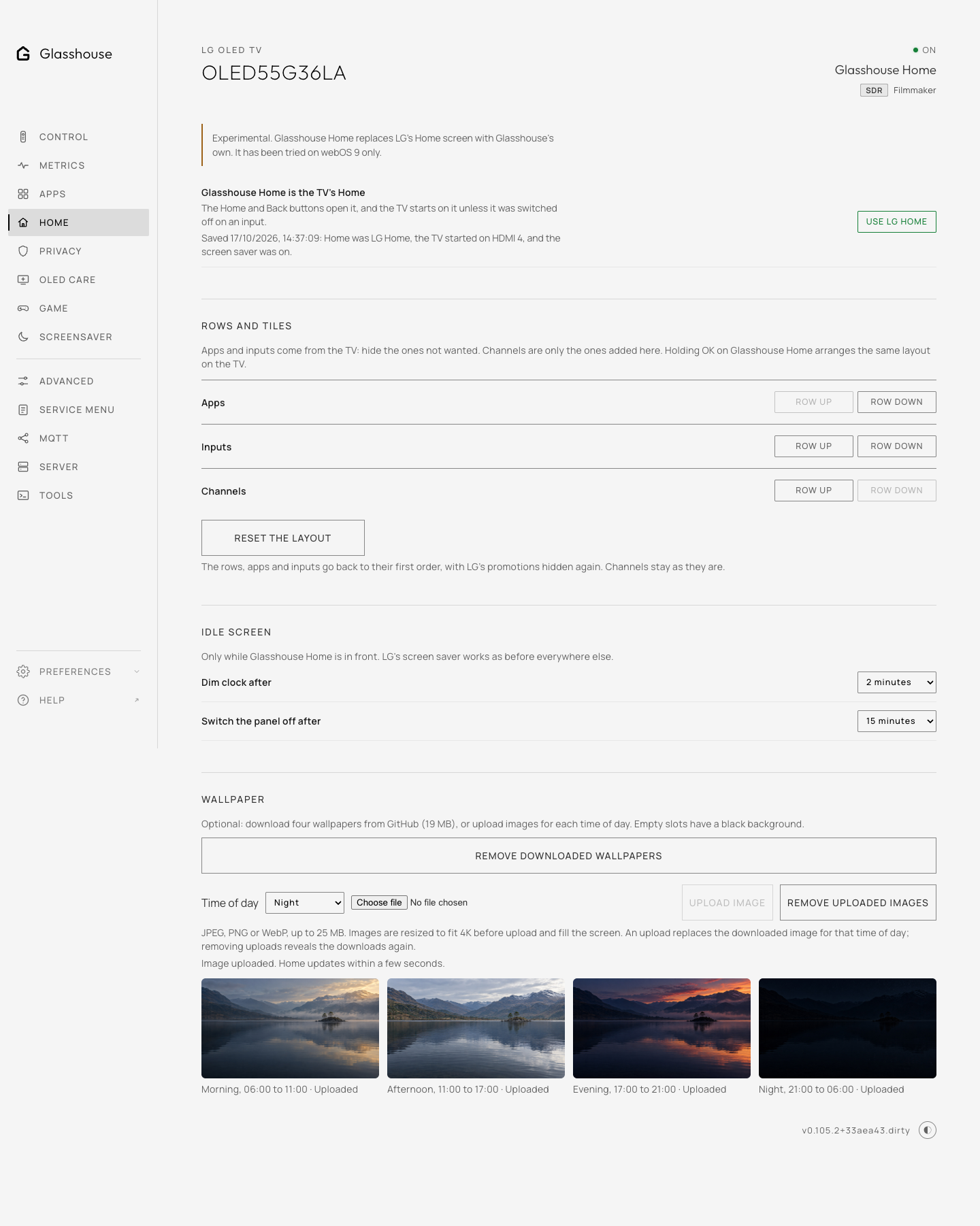
By default, Glasshouse Home uses a pure #000 OLED black background (and leaves the TV's screen saver untouched). A picture can be set for each of four times of day: Morning (06:00 to 11:00), Afternoon (11:00 to 17:00), Evening (17:00 to 21:00) and Night (21:00 to 06:00).
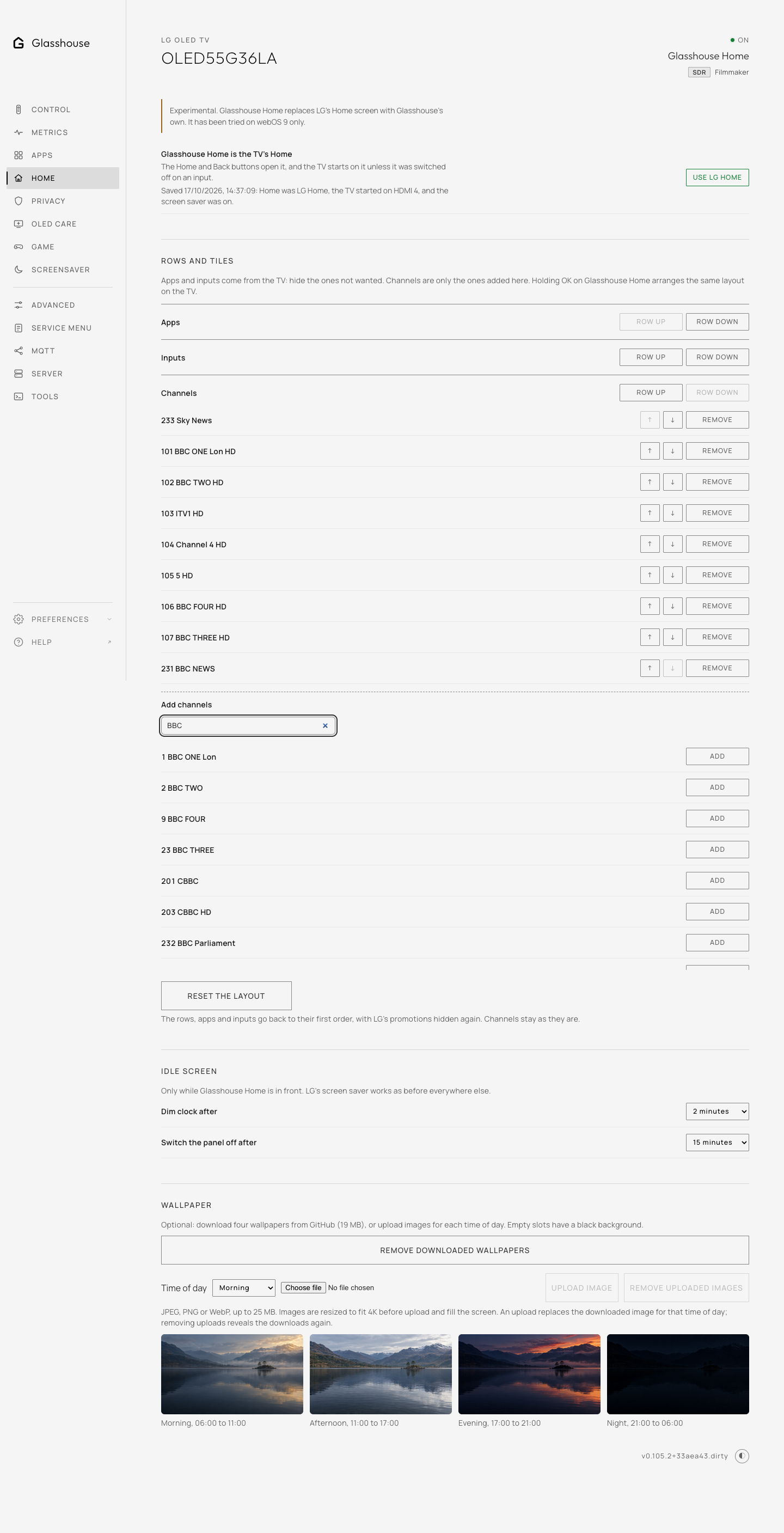
The web dashboard's Wallpaper section shows the day as a strip from midnight to midnight, each time of day filled with its picture across its hours and a marker at the time now, and below it each time of day as a small Glasshouse Home: its picture behind the clock in the chosen text colour, so how readable the clock will be shows before it is on the TV. The time of day showing now is marked Now.
- Choosing a time of day, on the strip or its preview, or dropping an image on it, sets its picture. JPEG, PNG and WebP images up to 25 MB are taken; the browser scales each to fit 1920 × 1080 as a JPEG before saving it to
/var/lib/tvweb/home-wallpaper-uploadson the TV. - Replace and Remove under a time of day change or remove its picture alone; one without a picture has the black background.
- Add example pictures fills every time of day without a picture from an example set, a loch at four times of day, and leaves the ones already chosen. The set is downloaded to the TV only when the button is pressed, about 820 KB in all, from glasshouse-wallpapers. The button is hidden once every time of day has a picture.
- Remove all puts the black background back for every time of day.
Switching it on and off
Click Use Glasshouse Home (and confirm on the second press) in the web dashboard's Home tab or the TV app's Home section. Glasshouse Home is mounted over LG's launcher without modifying the root filesystem. Clicking Use LG Home (or running tvwebctl restore-glasshouse-home over SSH) restores LG's launcher within a few seconds.
- Reaching LG's Home without turning Glasshouse Home off:
- Select the LG Home tile at the end of the Apps row.
- Hold the remote's Home button for 1 second (a short press on LG's Home returns to Glasshouse Home).
- Stop the Glasshouse server: if Glasshouse Home stops answering or the server is stopped/uninstalled, LG's Home automatically takes its place back.
- Glasshouse Home not opening: if a short press of Home brings nothing from Glasshouse Home, LG's Home opens instead. Where the TV's web app manager, which runs Glasshouse Home, has stopped, this is decided after five seconds, and the web app manager is started again first and Glasshouse Home given one more try. Where it is running, Glasshouse Home may only be slow to load, as on the first press after a reboot, so it is given 20 seconds.
- Cold boot & standby: Open Home at power-on controls whether the TV opens the Home screen when switched on or stays on the last input (LG's Home Auto Launch). With Quick Start+ (Active Standby) on, Glasshouse Home opens immediately on wake (and on TVs like the C4 on webOS 10.3.1 that start on their last input anyway, Glasshouse Home is opened over it when Open Home at power-on is on). On a cold boot (Quick Start+ off), Glasshouse Home takes over about 25–40 seconds after power-on; pressing Home during startup keeps the TV on the current input with a brief notice until ready.
- Hide LG's Home while the TV starts (webOS 9 optional setting): Replaces LG's Home layout with a blank screen during the first seconds of a cold boot so LG's launcher never flashes on screen.
Warning
If Hide LG's Home while the TV starts is enabled and Glasshouse is removed manually without running Use LG Home or tvwebctl restore-glasshouse-home (for example, if a firmware update removes root), LG's Home will remain blank until its layout cache is cleared over SSH:
rm -rf /mnt/lg/cmn_data/manifest /tmp/checkpoint/*com.webos.app.home* /mnt/lg/cmn_data/checkpoint/*com.webos.app.home* && reboot
Arranging
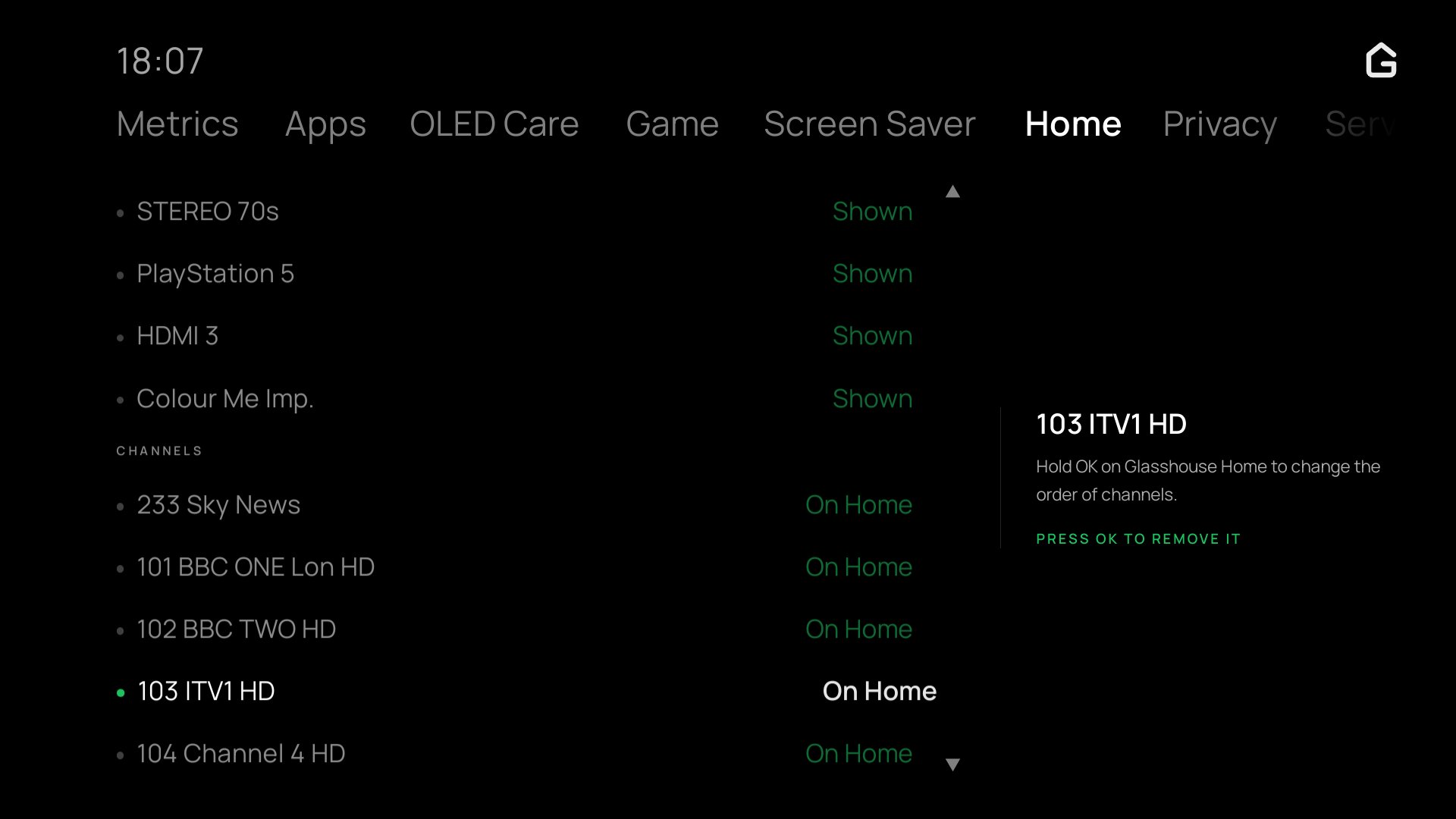
Rows and tiles can be arranged from the web dashboard, the TV app, or directly on Glasshouse Home:
- On the TV screen: Hold OK on any tile to enter arrange mode. Use the D-pad (Left/Right to move a tile, Up/Down to reorder rows), Back to hide/show a tile or remove a channel, and the bottom bar for Reset and Done.
- More apps: Apps that should not take up the Apps row can go into a folder instead of being hidden. While arranging, focus an app and choose Into or out of More apps in the bottom bar (or press the green button). The Apps row then ends with a More apps tile showing the first four icons; OK opens every app in it as a grid, and Back closes the grid. The LG Home tile can go into the folder too. Hiding an app takes it out of the folder, and Reset empties the folder. In the web dashboard's Home tab, each app in the Apps row has a choice of Shown, In More apps or Hidden.
- Row ordering (
Your ordervsLast opened): Each row can be set to stay in a fixed custom order (Your order) or automatically move the most recently used app, input, or channel to the front (Last opened, keeping LG Home pinned at the end). - Adding and removing channels: Apps and inputs are discovered automatically from the TV and toggled between shown and hidden (inputs with nothing plugged in can also be left out with the Inputs row's Hide inputs with nothing connected switch); live TV channels are added by name or number under Add channels and removed when no longer needed.
Home customisation
The Home tab's Home customisation section holds what applies to whichever Home is the TV's, in one column with each switch on the right:
- While Glasshouse Home is on: Open Home at power-on, Glasshouse Home's own options (Hide LG's Home while the TV starts, Picture details, Last watched, App count, CEC addresses, Search, Fade in and out).
- While LG's Home is: Open Home at power-on, Home screen layout and Hide home screen system apps.
Each appears where the TV has it. A TV Glasshouse Home is not offered on, such as a B8 with webOS 4.4, still has the Home tab for these; there it holds Open Home at power-on and Hide home screen system apps. The TV app's Home section has the same rows.
Open Home at power-on
Opens the Home screen when the TV is switched on, rather than staying on the last input. LG calls this Home Auto Launch (general.homeAutoLaunch). While Glasshouse Home is on, the Home it opens is Glasshouse Home (see Switching it on and off).
Hide home screen system apps
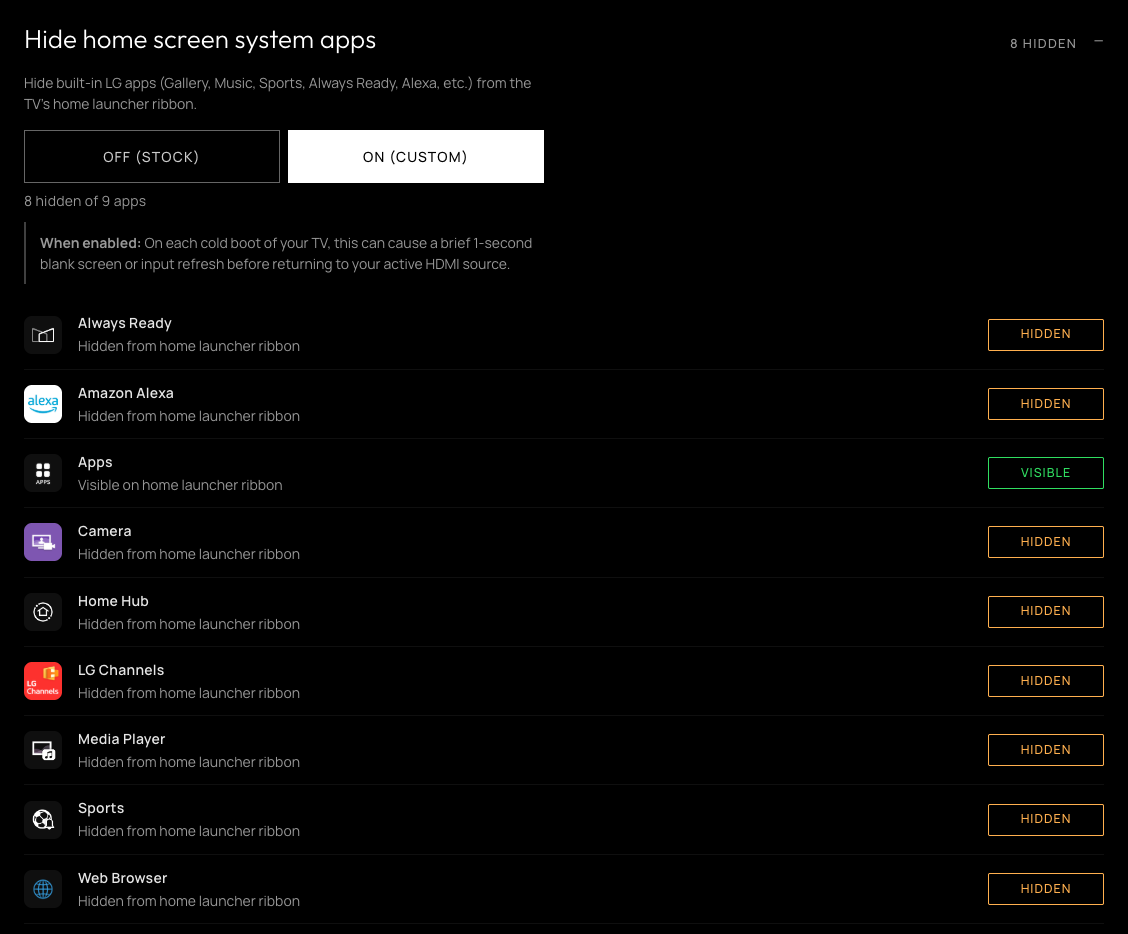
Hides built-in LG apps that can't be uninstalled, such as Gallery, Music, Sports, Alexa and the User Guide, from the Home screen ribbon. Each app is a tile, dimmed and marked Hidden while hidden; choosing one hides or shows it. The apps themselves stay on the TV, and switching the feature off brings every one back. The Web Browser is not offered: hidden, it no longer opens, and saved web pages and links from other apps open in it. A TV that had it hidden shows it again.
On a TV where the app manager can be made to reread its apps through LG's region list (webOS 9 has it, webOS 4 does not), hidden apps come back hidden at each start without restarting it. Elsewhere it is restarted at each cold boot, which can blank the screen for a moment before the active input returns, and the section says so.
It is for LG's Home, and is not offered while Glasshouse Home is on, which hides apps itself from Arranging or the Apps row. Switching Glasshouse Home on switches it off, and the apps it was hiding stay hidden in Glasshouse Home, apart from any in More apps. Switching back to LG's Home, they show there again until it is switched on again.
It is experimental, and off until it is turned on under Server → Advanced → Experimental features; see Experimental features for why. It is not offered on a Homebrew Channel install.
Home screen layout
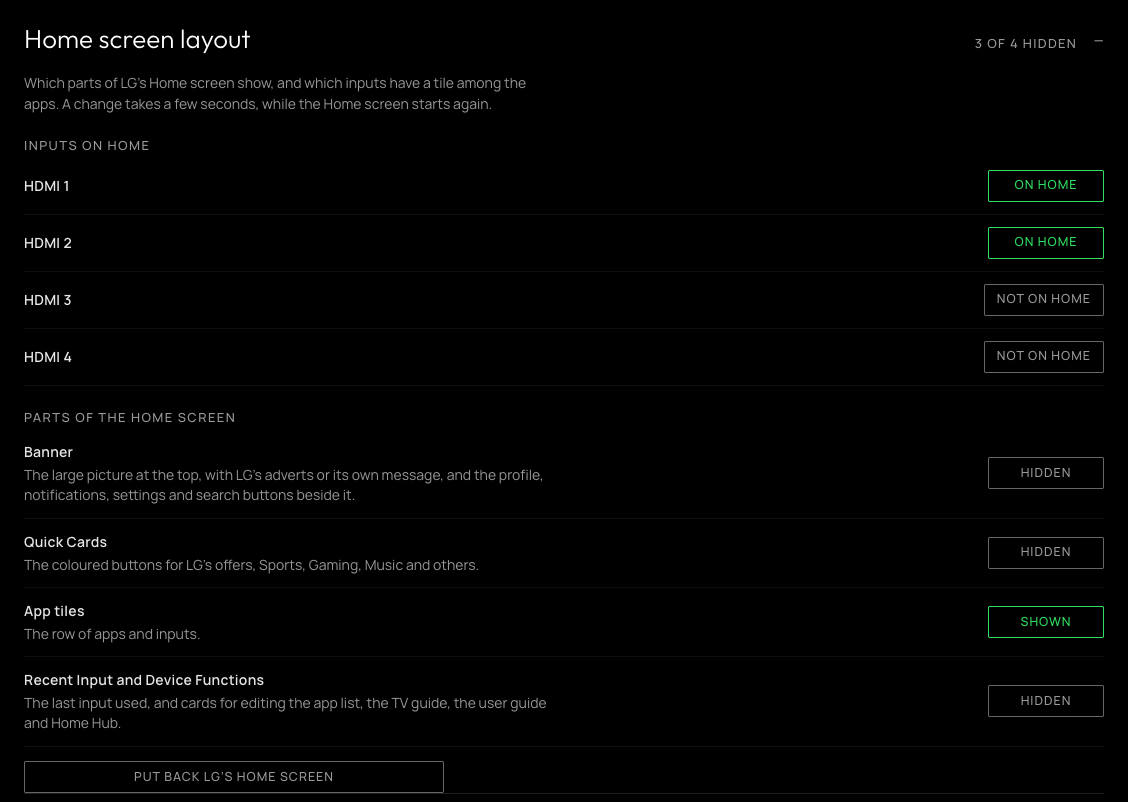
Switches parts of LG's Home screen off, for a Home screen with only the apps and inputs on it:
- Banner: the large picture at the top, with LG's adverts or, with them off, its own message and a Go to Apps button. The profile, notifications, settings and search buttons beside it go with it; Settings and search stay on the remote's own buttons.
- Quick Cards: the coloured buttons for LG's offers, Sports, Gaming, Music and others.
- App tiles: the row of apps and inputs.
- Recent Input and Device Functions: the last input used, and cards for editing the app list, the TV guide, the user guide and Home Hub.
At least one part stays. A change takes a few seconds, while the Home screen starts again, and lasts through restarts and power cuts. It is shown while LG's Home is the TV's Home, and left out while Glasshouse Home is on; the layout set here is kept, and is what LG's Home shows when opened from Glasshouse Home or once Glasshouse Home is switched off. The rows further down, such as Live TV and LG Channels, come from LG's servers and stay.
Inputs on Home shows each HDMI input as a tile, dimmed while it is not on Home; choosing one adds or removes the Home screen's tile for it, named as the TV names the input. The input tiles go before the apps, in HDMI order; adding one moves any input tiles moved elsewhere back to the front, and starts the Home screen again to show it. It is LG's own tile for the input, so it can be moved or removed on the TV like any other.
On webOS 9, highlighting an input tile shows its HDMI port and the CEC device names, including devices behind a receiver, or the TV's own name for the input where no device gives one. Long names scroll in LG's title area. Titles are read again when the Home screen opens and shortly after the TV switches on, never while it is in standby. Only input tiles added by Glasshouse are updated; a failed discovery keeps the last good title.
Put back LG's Home screen shows every part again and takes off the input tiles added here; ones added on the TV stay. The TV app has the same switches.
It is offered on webOS 9 (LG's webOS 24), where it has been tried on a C2, and as an experimental feature on webOS 10 (LG's webOS 25), where it has been tried on a C2 with webOS 10.3.1. webOS 3 and 4 have a much plainer Home screen, so they do not have it. A webOS 8 TV may have the same home app as webOS 9, and webOS 11 a layout of its own; neither is offered it until one has been tried.
On webOS 10 the section has a switch at the top, with its warning, and nothing in it changes until that is on. The parts that can be switched off there are the Side buttons (profile, notifications, settings and search), the Quick Cards and the Recommended shelf. The banner stays.