Apps and home screen launcher
The Apps tab, /?tab=apps, has two groups: Apps, for installing and removing apps and the web pages saved to the Home screen; and Background, for the memory LG's background apps and services take up. What the remote's keys do is on the Remote tab.
Apps
Manage applications
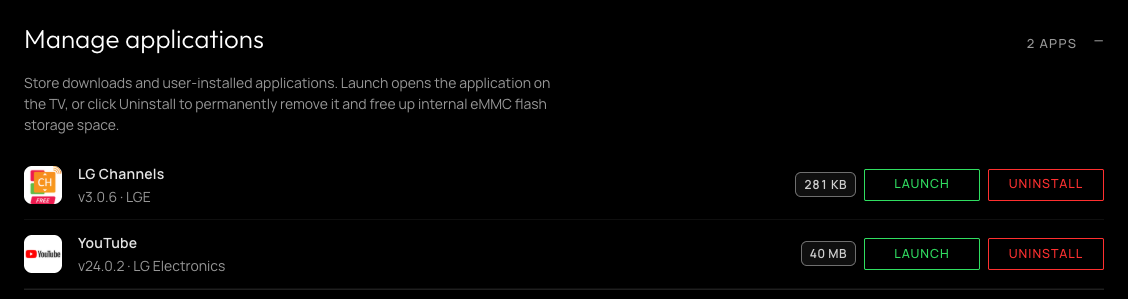
Lists the apps downloaded from the LG store or installed by hand in a card grid, with their version, vendor, and storage badge showing disk footprint. Launch opens the application on the TV, while Uninstall deletes an app completely and frees its storage. LG's built-in apps can't be removed this way; they can be hidden instead.
Install homebrew apps
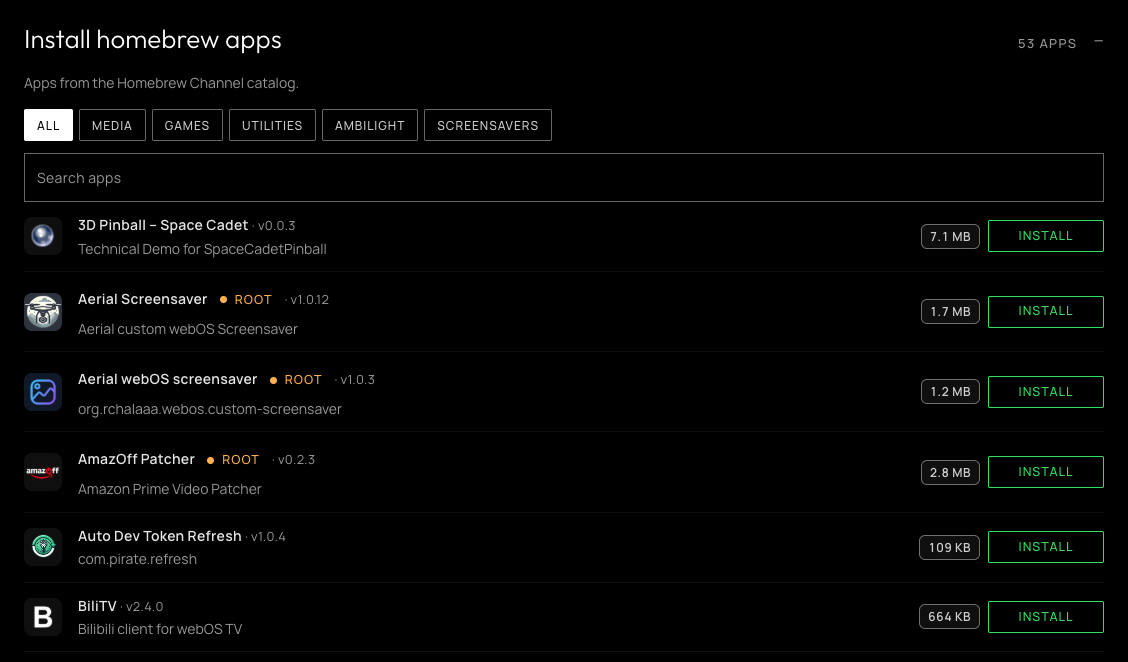
Lists the Homebrew Channel catalog, with category filters (All, Media, Games, Utilities, Ambilight, Screensavers) and keyword search, and Install, Update or Uninstall for each app, with Launch beside an installed one. The catalog shows 12 apps at a time in a card grid, with Show 12 more beneath; a search or category looks through the whole catalog. Downloads are checked against the catalog before they are installed, and the dashboard asks first when something needs a decision, such as replacing a copy installed from the LG store.
The outlined View source control beside Install, Update or Uninstall opens an app's declared source repository in a new browser tab when its catalog provides a valid absolute HTTPS address. It stays available while installation is disabled, in progress or complete. Apps without a valid source address have no source control.
GitHub release-download and archive addresses open the repository's main page. Other source addresses keep their path, including links to specific source files or directories. A direct .ipk download has no source link when its repository cannot be identified this way.
After a settings backup is restored, the apps it listed that this TV lacks and the catalog has are shown above the catalog. Install all installs them one after another, each as if picked from the catalog, so it stops for any decision; Dismiss forgets the list.
Other app catalogs
Catalogs other than the Homebrew Channel's, such as the one a developer keeps for a fork of an app. Pasting a catalog's address and choosing Add catalog lists its apps here, each with Install, Update or Uninstall (and Launch, once installed) and the catalog it is from, and they are checked for updates with the rest. A GitHub repository's page can be pasted in place of the address, and the dashboard reads the repo.json it keeps, as many such catalogs do. Each catalog shows how many apps it offers, or why it could not be read, and Remove takes it off the list; apps installed from it stay on the TV. Their apps show 12 at a time in a card grid, as the Homebrew Channel's do, with a search box once there are more than 12.
These apps are listed apart from the Homebrew Channel's, so an app both list, such as YouTube AdFree and a fork of it, shows in each, and Install or Update installs the one in that list. Where the TV has an LG store app under the same id, as YouTube is for YouTube AdFree and its forks, the catalog's app shows as not installed, and installing it asks before replacing the store's. An app from an added catalog is never given root without asking, as for an install from a URL.
Apps here also show View source when their catalog declares a valid HTTPS source address, regardless of where the repository is hosted.
Adding or removing a catalog needs Install app from a URL or file turned on, or a token, since whoever runs a catalog chooses what it offers to install. Catalogs listed in config.json show here too.
Install app from a URL or file
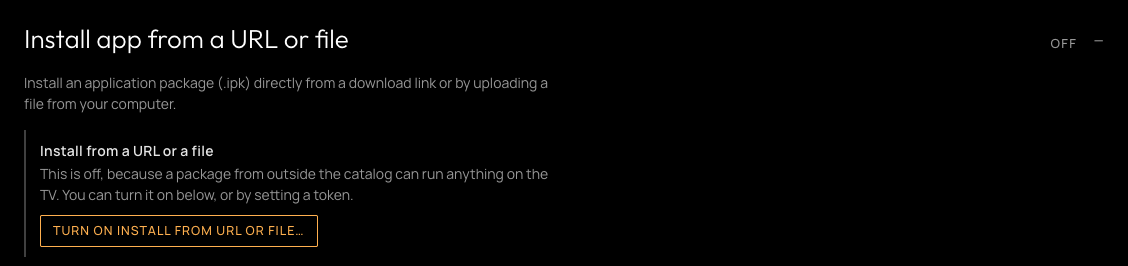
Installs an .ipk package from outside the catalog. From URL... downloads one from an http or https address, with an optional sha256 to check it against, and Upload .ipk sends one from the browser. Both show the same preview as a catalog install.
It is off until it is switched on in this section (after a warning) or a token is set, since a package from outside the catalog can run anything on the TV. A request from the TV itself is always allowed.
Saved web pages
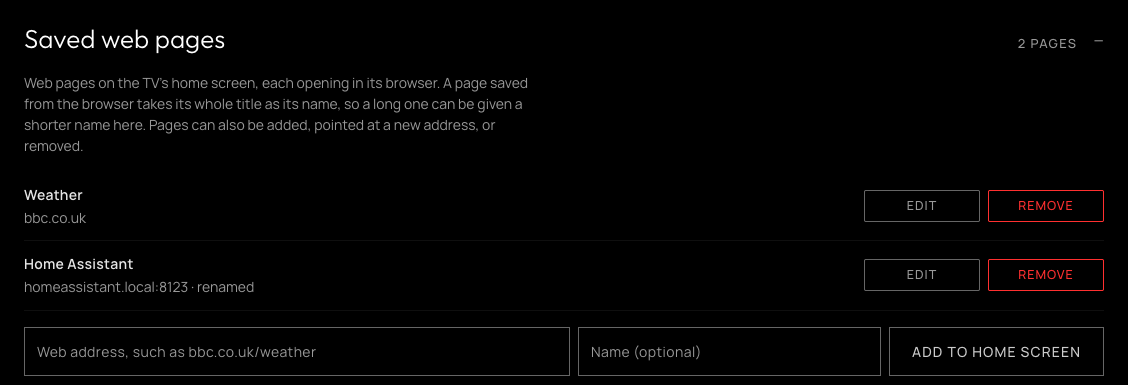
Lists the web pages on the Home screen, each of which opens in the TV's browser. They are on Glasshouse Home's Apps row too. A page saved from the browser takes its whole title as its name, so a long one can be given a shorter name here. Pages can also be added, pointed at a new address, or removed.
Background
Apps in memory
Lists user-facing apps currently open or loaded in memory on the TV, sorted with the app in front (In front) first and then by resident memory ({mb} MB). Choosing Close stops an app's process and frees its memory right away, and Close all stops every listed app at once. Essential TV shell components, input overlays, the screensaver, AirPlay and Glasshouse's own views are left out and cannot be closed here.
Apps kept ready in the background
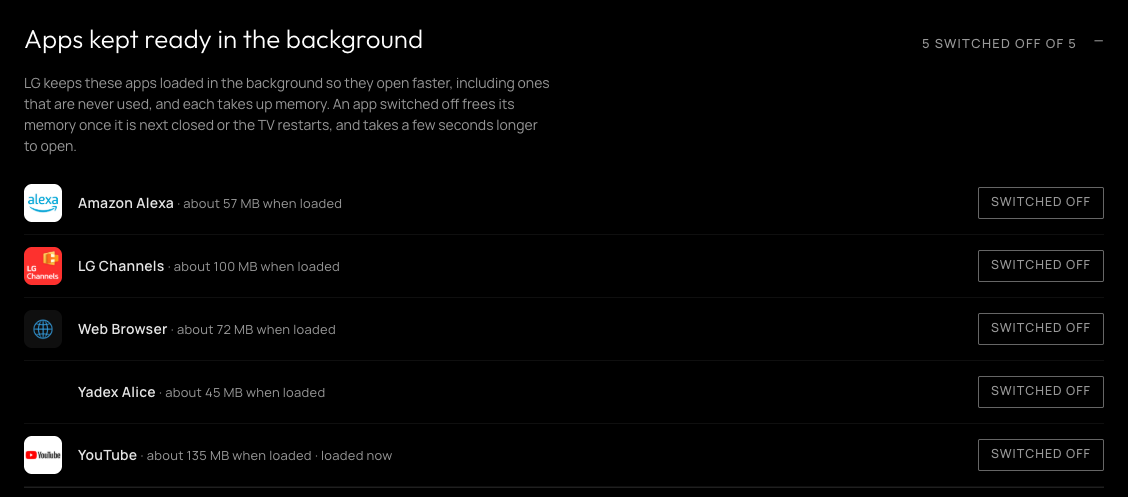
LG keeps some apps loaded so they open faster, including ones that are never used, and each takes up memory. Each app is a tile with roughly how much memory it takes once loaded, and whether it is loaded now; choosing one switches it off, or keeps it ready again. A switched-off app's tile is dimmed and marked in orange, the colour the Apps tab uses for a change from LG's own setting.
Switching an app off frees its memory once the app is next closed or the TV restarts, and it then takes a few seconds longer to open. Switching it back on returns it to LG's setting. Home, Live TV, the HDMI inputs and the other parts the TV relies on are not listed, and the section only appears on TVs that keep such a list. On webOS 11.2 the TV keeps none in its settings; the list comes from the preload manager itself, which is told about switched-off apps at each start and switch-on.
Turn off background services
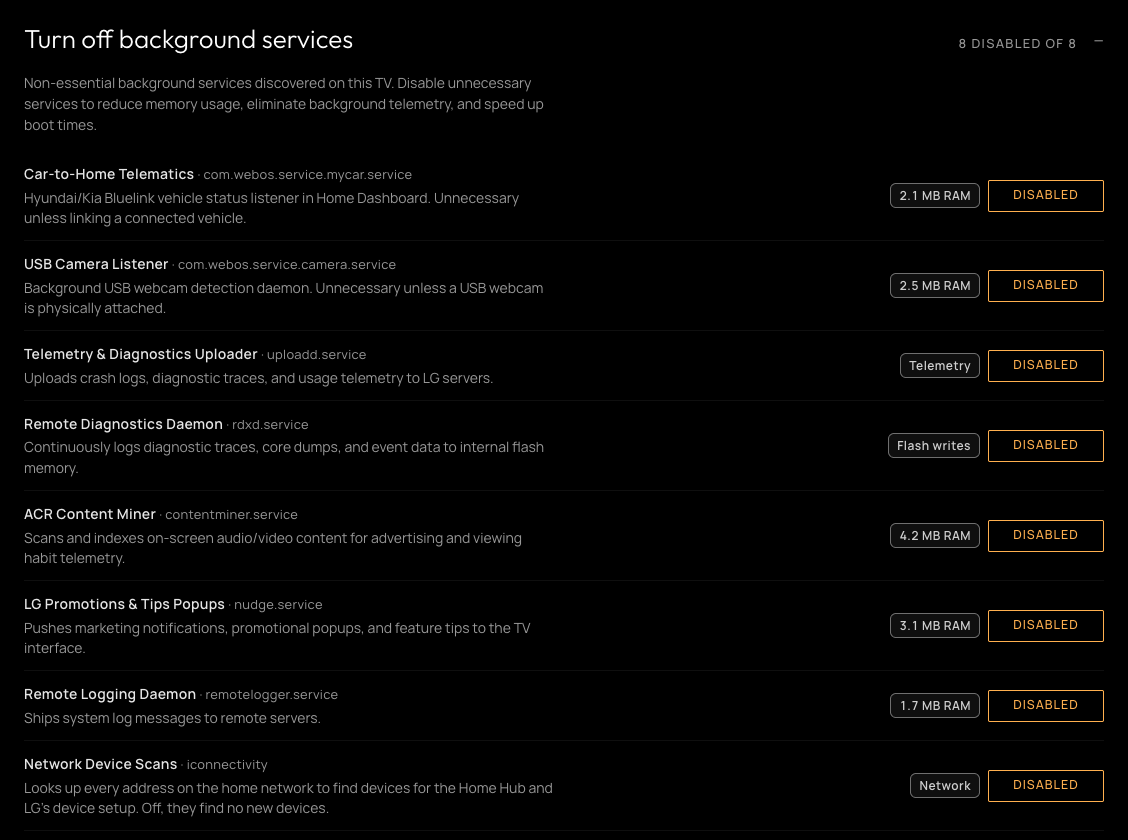
Stops background services that most TVs don't need, such as the connected-car listener, the USB camera watcher, and LG's diagnostics and telemetry uploaders. Only the services present on the TV are listed. A service switched off stays off across restarts, and is stopped again if something on the TV starts it.
LG Account is LG's account client. Settings waits for it before it opens, which with LG's servers blocked took up to 30 seconds on a B4 (webOS 10.3.2); off, Settings opened in under 2 seconds rather than 8. Off, anything that needs the LG account, such as signing in, ThinQ and the LG Content Store, stops working. It is offered on webOS 10, where LG's own list of services not to start holds it down; webOS 9 has no such list, and held down any other way, Settings waited for it longer.
The TV looking up every address on the home network, which a network-wide ad blocker such as Pi-hole shows as hundreds of requests, is switched off in Devices and connectivity, as Network device scans.
Network
DNS app configuration
An app LG runs in a sandbox of its own, such as YouTube, can look names up with DNS servers of its own: 1.1.1.1, say, or a Pi-hole on the home network, while everything else on the TV keeps using the TV's. Change takes up to three IPv4 or IPv6 addresses, separated by commas or spaces, and Use the TV's DNS puts the app back; an app without its own shows Using TV's DNS.
Change also takes a single https:// address for DNS over HTTPS, such as https://dns.nextdns.io/ followed by a NextDNS profile ID, which also tells NextDNS which profile to use without linking the TV's IP address. Glasshouse then answers the app's lookups on the TV itself and sends each on over HTTPS. The app finds nothing while Glasshouse isn't running, as in the first minute after the TV starts, and when the address doesn't answer, its row says why. TVs on webOS 4 may not manage the HTTPS that most of these servers require.
A change takes effect the next time the app starts, including when LG starts it again in the background. An app is listed once it has been opened, since that is when its sandbox is made. Web apps all run in one shared process, so they can't have servers of their own, and the section only appears on TVs with app sandboxes. An app that picks its own DNS server, or uses DNS over HTTPS by itself, is not affected; YouTube uses the servers set here. DNS can't block YouTube's video ads, which come from the same servers as the videos.
Notes
- Live TV, Settings, Home, the HDMI inputs, the Homebrew Channel and Glasshouse itself are protected: they can't be hidden or uninstalled.
- Everything on this tab also works from the TV app, except saved web pages, closing apps in memory and installing from a URL or a file, which are in the browser dashboard only.
- Apps that check they were installed from the LG store may refuse to run when installed another way, and apps built for a newer webOS than the TV runs may not launch.