Advanced Controls
The Advanced tab, /?tab=advanced, surfaces system settings that LG places several menus deep. Settings are grouped by category and appear only on TV models that support them. On the TV itself, they are located under System.
Power and standby
Staying connected while the TV is off
Switched off, an LG TV sleeps within a couple of minutes, and the dashboard and Home Assistant bridge sleep with it. On TVs that have LG's Always-on setting, Stay connected when off keeps the TV on the network with the screen dark instead: the dashboard keeps answering, Home Assistant keeps its readings and controls, and either can switch the TV back on.
The cost is power. On an OLED42C24LA it draws 12.5 W while off, against almost nothing in normal standby.
It does not hold all night. For five hours every night, 01:00 to 06:00 unless changed, LG suspends Always-on, and a TV switched off during those hours sleeps fully. It is offline until they end or it is switched on: the dashboard does not answer, and Home Assistant shows it asleep. LG fixes the length at five hours; Nightly power-down, next to the switch, moves them to hours the TV is not used.
The switch is under Advanced → Power in the web dashboard and System → Power on the TV, and setup offers it as a third step. TVs without the setting, such as webOS 4 models, do not show it; Wake-on-LAN still wakes them from standby.
Quick Boot
Switching off puts the TV into a light sleep rather than shutting it down completely, so it starts up faster. LG calls this Quick Start+.
Wake-on-LAN
Lets Home Assistant, a mobile app, or another network device switch the TV on from deep sleep using a Wake-on-LAN magic packet. LG refers to this as Mobile TV On.
Always Ready
On TVs that support LG's Always Ready feature, the Always Ready switch makes the TV show LG's Always Ready screen (such as a clock or artwork) when switched off with the remote, instead of going dark.
It is close to being on: an OLED42C24LA draws 31 W showing the clock. The dashboard and Home Assistant report the TV as switched off while it is active. The setting takes effect the next time the TV is switched off. The first time, webOS requests OK on the remote. Home turns the TV back on from the clock; the power button switches it fully off.
On and Off Timers
LG's On Timer and Off Timer switch the TV on or off at a scheduled time, once or on chosen days of the week. Both are configured under Advanced → Power in the web dashboard, with the time and days. The TV dashboard shows them under System → Power and switches them on and off; the specific time and days are configured from a browser.
A TV switched on by the On Timer shuts back off after two hours without a button press, provided LG's automatic shutoff setting is enabled. On webOS 6 and later, an On Timer set to Live TV with no channel tuned turns the TV on to Home instead when triggered here.
Display and ambient light
- LG logo: Controls whether the LG logo animation displays during power-on and power-off (LG Logo Display).
- Ambient light (PicCap): When PicCap is installed, captures on-screen content and streams it to a Hyperion server to drive ambient backlighting behind the TV. Turning it off stops video capture and the ambient lighting with it. See PicCap and ambient light for how it works and setup details.
Sound
Hold the TV's advanced audio settings, including sound output, sound mode, digital sound output format, balance, automatic volume leveling, eARC, and Bluetooth speaker mode. Sound mode and balance apply to the internal TV speakers only.
HDMI inputs
Per-port settings for HDMI Deep Colour (extended bandwidth for 4K HDR) and audio input format (Bitstream or PCM). In accordance with webOS design, an HDMI input's settings can be adjusted only while that specific input is actively displayed on screen.
Devices and connectivity
- SIMPLINK (HDMI-CEC): Enables CEC control and auto power synchronization with connected devices over HDMI.
- IP control: Enables external IP control protocol support.
- Auto device detection: Finds devices the TV can show on its Home Dashboard and control, from set-top boxes to smart lights, plugs, and switches. On newer webOS versions, the TV looks up every address on the home network each time it boots, which local network ad blockers (such as Pi-hole) record as hundreds of requests. Turning this off stops the boot scans completely.
Front lights
- Standby light: Toggles the red standby indicator LED located on the front bezel of the TV.
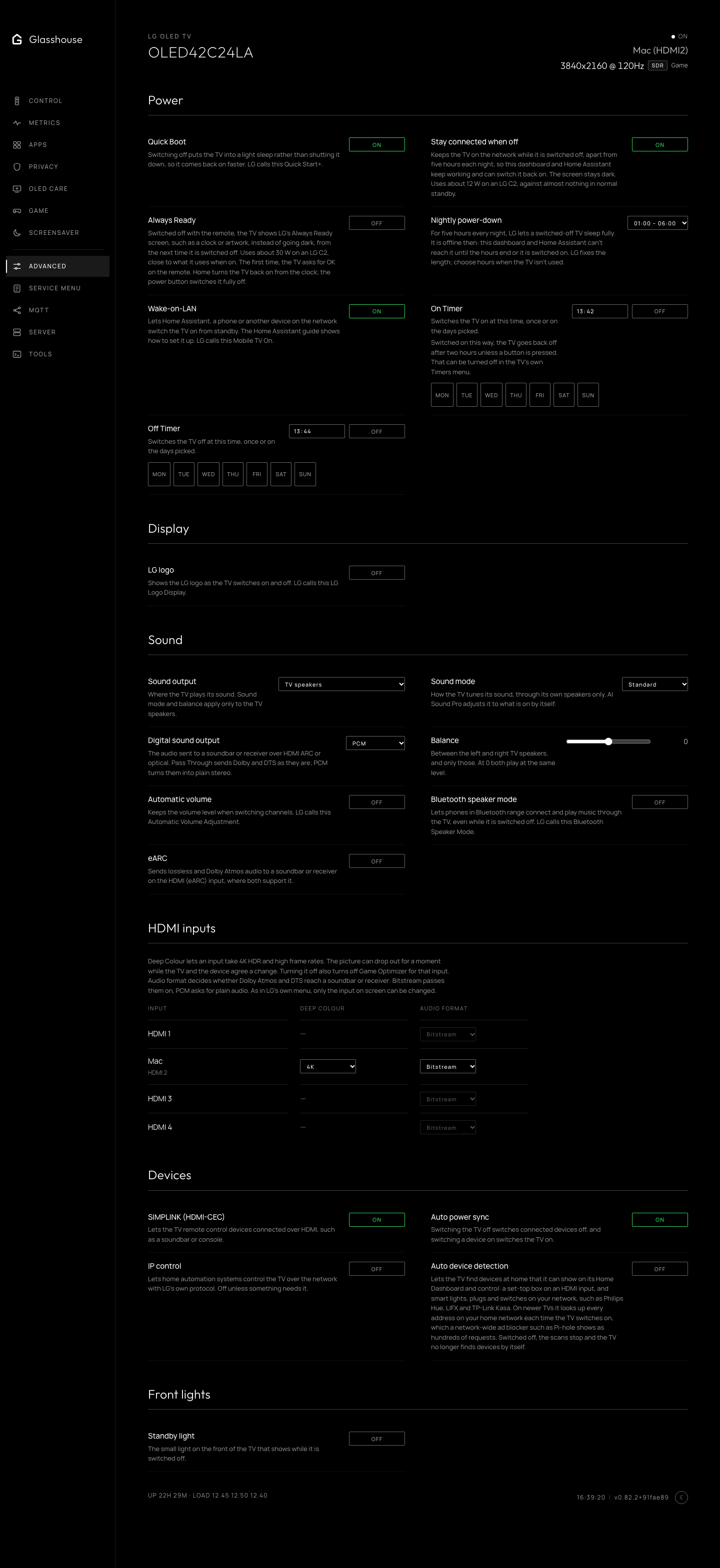
The TV's own settings, grouped as Power, Display, Sound, HDMI inputs, Devices and Front lights.