Control and Advanced
The Control tab, /?tab=control, turns the TV itself into a locally controlled device. Instead of relying on LG's cloud services or a phone app, the dashboard talks directly to webOS over the local network.
From a browser, the dashboard can navigate the TV, change inputs, control playback and volume, launch applications, change picture and sound settings, blank the screen, set a sleep timer, and send notifications.
- A D-pad — arrows, OK, Back and Home — to navigate the TV's own interface.
- Volume, mute, input select, and media playback — play, pause, stop, skip.
- App launching, picture presets and sound output routing. The presets on offer are the ones the TV will accept for whatever is playing: a Dolby Vision source has its own presets.
- Screen blanking, sleep timer, on-screen notifications, and power and restart.
- Opening a web page on the TV: type an address and the TV's browser takes it.
The Advanced tab, /?tab=advanced, holds the TV's own settings that LG keeps several menus deep: Quick Boot, Wake-on-LAN, staying connected when off, LG's Always Ready screen, the LG logo shown at power on and off, sound (output, sound mode, digital sound output, balance, automatic volume, eARC and Bluetooth speaker mode), each HDMI input's Deep Colour and audio format, SIMPLINK (HDMI-CEC) and its auto power sync, IP control, auto device detection, and the front lights. Sound mode and balance apply to the TV speakers only, and an HDMI input's settings can be changed only while that input is on screen, as in LG's own menu. Auto device detection finds devices the TV can show on its Home Dashboard and control, from a set-top box to smart lights, plugs and switches; on newer TVs it does so by looking up every address on the home network each time the TV switches on, and switching it off stops those lookups. Each setting appears only on TVs that have it. On the TV itself they are under System.
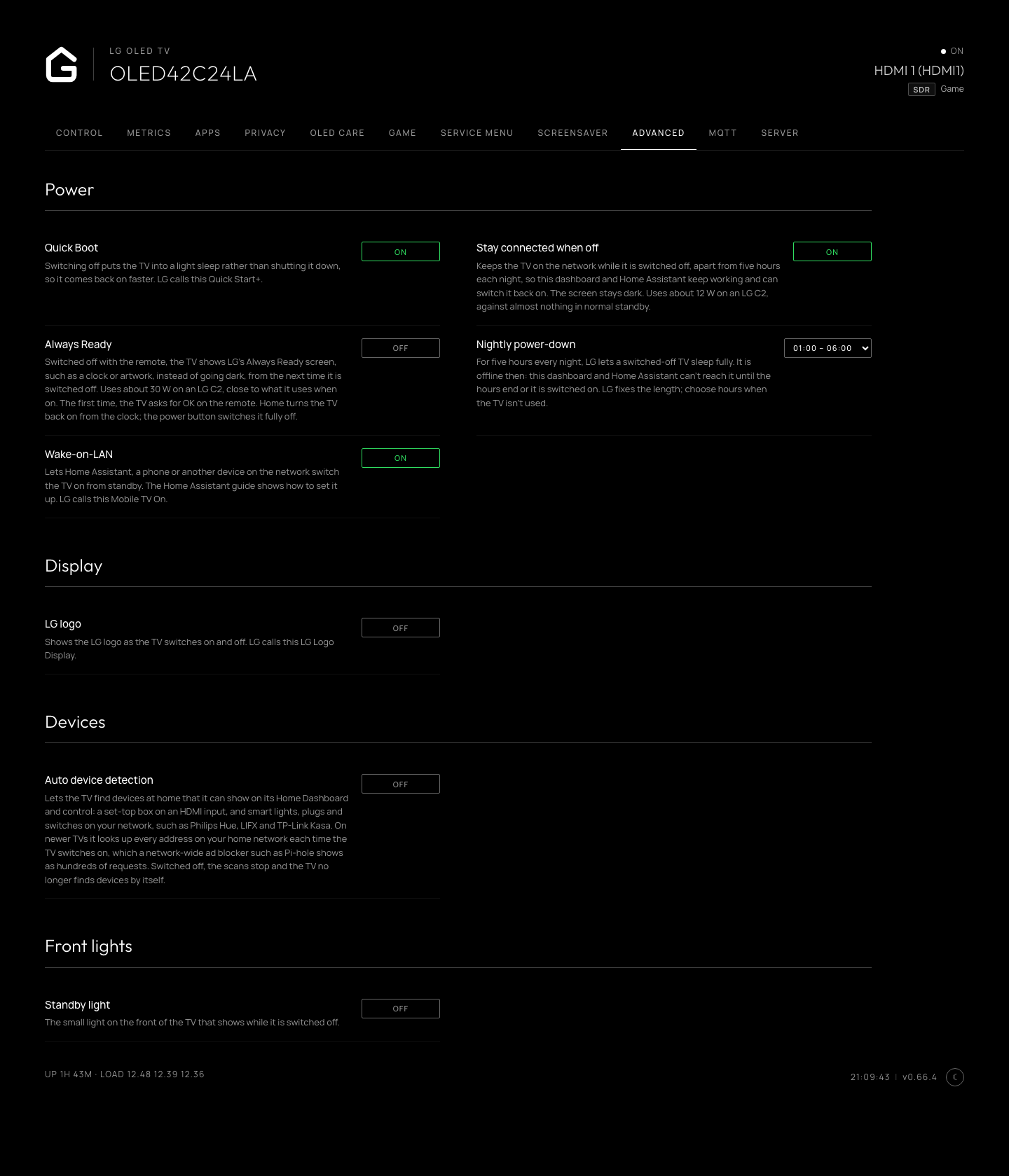
The TV's own settings, grouped as Power, Display, Devices and Front lights.